Simple Steps - Seagate External Hard-converted
Seagate External Hard Drive Password Recovery feature is also available to restore lost password rather than restoring lost files | Hard Drive Password Recovery<br>

Simple Steps - Seagate External Hard-converted
E N D
Presentation Transcript
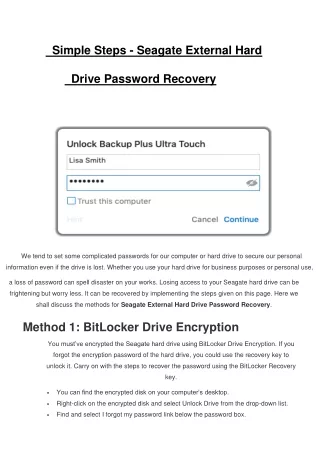
Simple Steps - Seagate External Hard Drive Password Recovery We tend to set some complicated passwords for our computer or hard drive to secure our personal information even if the drive is lost. Whether you use your hard drive for business purposes or personal use, a loss of password can spell disaster on your works. Losing access to your Seagate hard drive can be frightening but worry less. It can be recovered by implementing the steps given on this page. Here we shall discuss the methods for Seagate External Hard Drive Password Recovery. Method 1: BitLocker Drive Encryption You must’ve encrypted the Seagate hard drive using BitLocker Drive Encryption. If you forgot the encryption password of the hard drive, you could use the recovery key to unlock it. Carry on with the steps to recover the password using the BitLocker Recovery key. •You can find the encrypted disk on your computer’s desktop. •Right-click on the encrypted disk and select Unlock Drive from the drop-down list. •Find and select I forgot my password link below the password box.
•You’ll be directed to the BitLocker Drive Encryption screen, click on the Type the recovery key option. •Enter the BitLocker recovery password on the field and click Next. •Click on the Manage BitLocker option to change your unlocking password. •Choose Change password to unlock the drive. •Now, enter your new password in the field. Re-enter the password and click Next. •Click on the Save or Print recovery key again option. •You can now use the new password to access your Seagate hard drive. Method 2: Reset Seagate hard drive In case you have protected your Seagate hard drive using Seagate Toolkit, you cannot recover the drive password. You can reset Seagate hard drive to reset your password, but you may not be able to recover the data or documents stored in the hard drive. The lost data cannot be recovered as well. If you still wish to reset your Seagate Hard Drive to gain access to it, then continue reading: •Unplug the hard drive from the power source and turn it off. •Wait for ten to fifteen seconds and power up the drive. •Wait for the device to boot automatically. Now, check the green light on the drive. •If the light is either flashing or blinking, then wait for five to ten seconds and let the device boot completely. •You can find the Reset button at the bottom of the hard drive. Press and hold the Reset button for about ten to fifteen seconds. Hold the button until the green light starts to flash. •Wait for the light to become solid. •Now, proceed with the initial setup and set a new password for your Seagate hard drive. If you’re still experiencing the Seagate External Hard Drive Password Recovery issue, then contact our technical team for remote assistance.