Download

1 / 11
0 likes | 0 Vues
This PDF is a helpful guide for students who want to improve their Photoshop skills in a smart and practical way. It covers essential Photoshop tricks that save time and help create better designs with ease. From quick selection techniques to layer and editing shortcuts, this guide focuses on skills every beginner should know. It is ideal for students, freshers, and learners who want to boost their creativity and confidence while working on real design projects.

E N D
Top Photoshop Tricks Students Should Know Master essential Photoshop techniques that transform beginners into confident designers. From layer masking to advanced retouching, discover the professional shortcuts that elevate your digital art skills. preencoded.png
Why Master Photoshop in 2024? Industry-Standard Tool Portfolio Game-Changer Photoshop remains the gold standard across creative industries—graphic design, digital marketing, photography, and web development. Employers actively seek candidates with proven Adobe Photoshop proficiency. Stand out in competitive job markets by showcasing advanced Photoshop techniques in your portfolio. From photo manipulation to digital illustration, these skills demonstrate technical expertise. Over 90% of creative professionals worldwide rely on Photoshop for their daily workflow, making it an essential skill for career advancement. Students who master Photoshop tools command higher freelance rates and secure better internship opportunities. preencoded.png
Essential Layer Masking Techniques Non-Destructive Editing Precise Selections Combine selection tools with layer masks for flawless compositing. Use gradient masks for seamless blending and paint directly on masks for intricate detail work. Layer masks preserve original images whilst allowing unlimited adjustments. This professional technique enables you to hide or reveal portions without permanently deleting pixels. Professional Workflow Master keyboard shortcuts: Ctrl+Click thumbnails creates instant selections. Toggle mask visibility with Shift+Click quick comparisons. Ctrl+Click (Windows) or Cmd+Click Cmd+Click (Mac) on layer Shift+Click for preencoded.png
Advanced Selection Tools That Save Hours Object Selection Tool Pen Tool Mastery Refine Edge Technique AI-powered precision isolates subjects in seconds. Simply draw a rough selection, and Photoshop's neural filters automatically detect edges—perfect for product photography and portrait work. Create vector-perfect paths for ultimate control. Whilst challenging initially, the Pen Tool delivers unmatched precision for logo design, packaging mockups, and professional retouching. Extract hair and fur with professional-grade accuracy. The Refine Edge brush intelligently separates complex edges from backgrounds— essential for portrait compositing and product photography. preencoded.png
Professional Photo Retouching Workflow 01 02 Frequency Separation Dodge and Burn Separate texture from colour for flawless skin retouching. This advanced technique allows independent editing of skin tone and texture, producing natural-looking results that avoid the "plastic" appearance. Sculpt dimension through strategic lighting adjustments. Professional photographers use non-destructive dodge and burn layers to enhance contours, add depth, and create magazine-quality portraits. 03 04 Colour Grading Sharpening Techniques Apply cinematic colour treatments using adjustment layers. Master curves, selective colour, and colour balance to achieve consistent, professional-grade colour grading across your portfolio projects. Finish with intelligent sharpening for print and web. Use High Pass filtering or Smart Sharpen on separate layers to enhance detail whilst maintaining natural-looking results across different output formats. preencoded.png
Time-Saving Keyboard Shortcuts Essential Tools Layer Commands Workflow Boosters • V V – Move Tool • Ctrl+J Ctrl+J – Duplicate Layer • Ctrl+Alt+Z Ctrl+Alt+Z – Multiple Undo • B B – Brush Tool • Ctrl+G Ctrl+G – Group Layers • Ctrl+T Ctrl+T – Free Transform • E E – Eraser Tool • Ctrl+E Ctrl+E – Merge Down • Shift+F5 Shift+F5 – Content-Aware Fill • W W – Quick Selection • Alt+[ Alt+[ – Decrease Opacity • X X – Swap Foreground/Background • P P – Pen Tool Professional designers operate primarily through keyboard shortcuts, achieving 40% faster workflow speeds. Memorise these combinations to dramatically improve your productivity and client turnaround times. preencoded.png
Creative Text Effects for Digital Marketing Layer Styles Library Build reusable text effects with blending options. Combine drop shadows, gradient overlays, and stroke effects to create consistent branding elements for social media graphics and marketing materials. 3D Text Design Generate eye-catching dimensional typography using Photoshop's 3D workspace. Perfect for YouTube thumbnails, Instagram stories, and attention-grabbing promotional graphics that boost engagement. Warp & Transform Apply dynamic distortions and perspective effects to typography. Use envelope distort and puppet warp for creative logo presentations and unique title treatments in your design portfolio. preencoded.png
Smart Objects: Your Secret Weapon What Are Smart Objects? Smart Objects preserve source content whilst enabling non-destructive transformations. Convert layers to Smart Objects before scaling, rotating, or applying filters—maintaining full editability throughout your design process. Key Benefits • Scalable quality: Scalable quality: Resize without pixelation or quality loss • Editable filters: Editable filters: Apply Smart Filters that remain adjustable • Linked updates: Linked updates: Edit once, update across multiple instances • Professional mockups: Professional mockups: Create realistic product presentations effortlessly Right-click any layer and select "Convert to Smart Object" to unlock these powerful capabilities in your workflow. preencoded.png
Blend Modes for Professional Compositing Multiply & Screen Overlay & Soft Light Colour & Luminosity Multiply darkens images by multiplying base colours—ideal for adding shadows and depth. Screen lightens by inverting, multiplying, and inverting again—perfect for creating realistic light effects and lens flares. Overlay combines Multiply and Screen for enhanced contrast whilst preserving highlights and shadows. Soft Light produces subtler results—excellent for texture overlays and atmospheric effects in photo manipulation. Colour mode applies hue whilst preserving luminance—essential for non-destructive colour correction. Luminosity applies brightness without affecting colour—crucial for sharpening and dodging/burning techniques. Experiment with blend modes by cycling through options using Shift + Plus/Minus unexpected visual combinations. Shift + Plus/Minus keys. This technique accelerates your creative exploration and helps discover preencoded.png
Build Your Photoshop Expertise Today Practice Daily Create Portfolio Projects Stay Updated Dedicate 30 minutes daily to mastering one technique. Consistent practice transforms basic knowledge into professional-level expertise that distinguishes your portfolio. Adobe releases powerful updates regularly. Follow industry leaders, complete online tutorials, and join design communities to maintain cutting-edge Photoshop proficiency. Apply these tricks to real-world projects— product mockups, social media templates, photo retouching. Showcase diverse Photoshop skills to potential employers and clients. Ready to advance your design career? Ready to advance your design career? Visit AttitudeYTallyAcademy.com for comprehensive Photoshop training courses, expert tutorials, and certification programmes that transform students into industry-ready professionals. preencoded.png
THANK YOU Thank you for joining us today. We hope you found this presentation valuable. We wish you all the best. For more information, or visit our website:- Attitude Academy

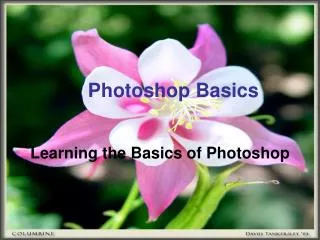

![Photoshop Basic[1]](https://cdn3.slideserve.com/6518042/photoshop-basic-1-dt.jpg)

![[PDF] Free Download We Should All Be Feminists By Chimamanda Ngozi Adichie](https://cdn4.slideserve.com/8214142/slide1-dt.jpg)