Windows Update Errors
<br><br>Windows update errors can cause system crashes, slow performance, and installation failures. Learn causes and step-by-step fixes with expert help from Maxiple IT Services. Visit https://maxipleitservices.com/<br>or call 91 88828 41303 today.<br><br>https://maxipleitservices.com/windows-update-errors-causes-and-step-by-step-fixes/

Windows Update Errors
E N D
Presentation Transcript
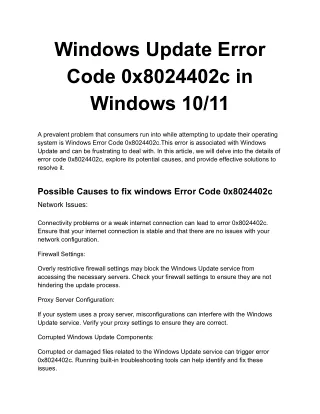
Windows Update Errors: Causes and Step- by-Step Fixes Windows updates are essential for keeping your laptop or computer secure, stable, and running efficiently. Updates provide security patches, bug fixes, performance improvements, and new features. However, many users experience Windows update errors that prevent updates from installing successfully. These errors can slow down your system, create security risks, and cause software compatibility issues. This guide explains the most common causes of Windows update errors and provides step- by-step fixes to help you resolve them quickly. What Are Windows Update Errors? Windows update errors occur when your system fails to download, install, or complete updates provided by Microsoft. These errors often appear with error codes such as: 0x80070002 0x800f0922 0x80073712 0x80070005 0x8024402c Each error indicates a specific problem related to system files, network issues, or update services. Common Causes of Windows Update Errors Understanding the cause helps you apply the correct fix. 1. Corrupted System Files Damaged or missing system files can prevent updates from installing properly. 2. Poor Internet Connection Unstable or slow internet can interrupt update downloads. 3. Insufficient Disk Space Windows updates require enough free storage to download and install files.
4. Disabled Windows Update Services If update services are stopped or disabled, updates cannot proceed. 5. Software Conflicts Antivirus programs or third-party applications can block updates. 6. Corrupted Windows Update Components Update cache files may become corrupted and prevent installation. Step-by-Step Fixes for Windows Update Errors Follow these proven solutions to resolve most update problems. Fix 1: Restart Your Computer A simple restart can resolve temporary glitches. Steps: 1.Click Start 2.Select Power 3.Click Restart After restarting, check for updates again. Fix 2: Check Internet Connection Ensure you have a stable and working internet connection. Steps: Restart your router Switch to a stable Wi-Fi network Avoid mobile hotspots if possible Fix 3: Free Up Disk Space Windows updates require sufficient storage.
Steps: 1.Open Settings 2.Go to System → Storage 3.Delete temporary files 4.Remove unused applications Aim for at least 20 GB of free space. Fix 4: Run Windows Update Troubleshooter Windows has a built-in troubleshooter tool. Steps: 1.Open Settings 2.Go to Update & Security 3.Click Troubleshoot 4.Select Windows Update 5.Click Run Troubleshooter Follow the on-screen instructions. Fix 5: Restart Windows Update Services Steps: 1.Press Windows + R 2.Type services.msc 3.Find Windows Update 4.Right-click → Restart Also restart: Background Intelligent Transfer Service (BITS) Cryptographic Services Fix 6: Clear Windows Update Cache Steps: 1.Press Windows + R 2.Type services.msc
3.Stop Windows Update service 4.Go to: C:\Windows\SoftwareDistribution 5.Delete all files inside 6.Restart Windows Update service Fix 7: Run System File Checker (SFC Scan) Steps: 1.Open Command Prompt as Administrator 2.Type: sfc /scannow 3.Press Enter 4.Wait for scan completion 5.Restart your laptop This repairs corrupted system files. Fix 8: Use DISM Tool If SFC does not fix the problem: Open Command Prompt as Administrator and run: DISM /Online /Cleanup-Image /RestoreHealth Restart your computer after completion. Preventing Windows Update Errors Follow these tips to avoid future problems: Keep enough free disk space Maintain a stable internet connection Avoid interrupting updates Regularly restart your system Keep drivers updated Avoid installing unknown software When to Seek Professional Help
You should contact professional laptop repair technicians if: Windows update errors persist Laptop fails to boot after update BIOS or firmware issues occur System becomes slow or unstable Professional technicians can safely repair system files and restore update functionality. Why Timely Windows Updates Are Important Regular updates provide: Improved security Better performance Bug fixes Hardware compatibility New features Ignoring updates can make your system vulnerable to threats. Conclusion Windows update errors are common but can be fixed with the right troubleshooting steps. Most problems are caused by corrupted files, insufficient storage, or service issues. By following the solutions in this guide, you can restore proper update functionality and keep your laptop running smoothly. If the issue continues or your system requires expert repair, professional laptop repair services can diagnose and resolve the problem safely and efficiently. Blog link:- https://maxipleitservices.com/windows-update-errors-causes-and-step-by-step- fixes/