Download
1 / 21
230 likes | 253 Vues
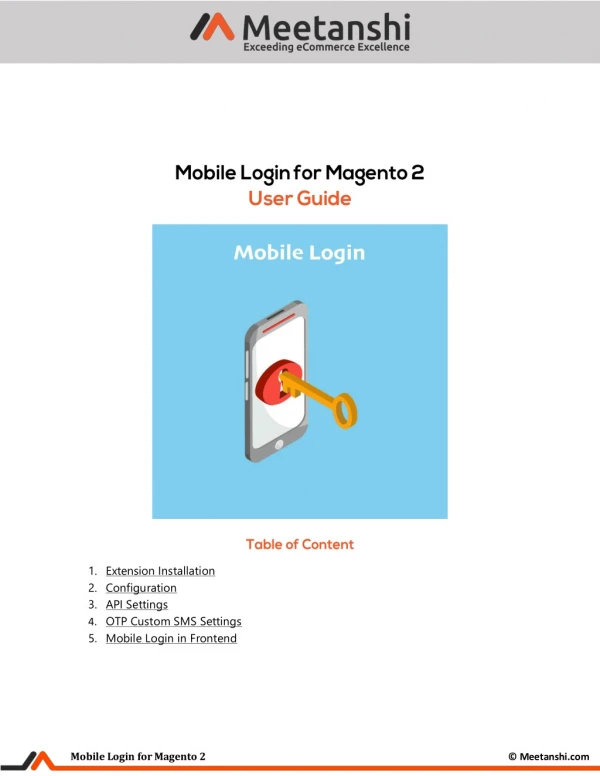
Customer experience and security go hand in hand for the E-commerce business. Both aspects are equally important and one cannot be ignored in the process of improving the other. Hence, Meetanshi has developed the Magento 2 Mobile Login extension that allows users to register and login via mobile number after OTP verification.<br>For more information, visit https://meetanshi.com/magento-2-mobile-login.html

E N D
Mobile Login With OTP for Magento 2 User Guide Table of Content 1.Extension Installation 2.Twilio Registration 3.Msg91 Registration 4.Configuration 5.API Settings 6.API Testing 7.OTP Custom SMS Settings 8.Synchronize Telephone Number with Mobile Number 9.Form Title Texts 10.Form Layout Settings 11.Country Flag Settings 12.Mobile Login With OTP in Frontend 13.SMS Logs Mobile Login With OTP for Magento 2 © Meetanshi
1.Extension Installation •Find the Composer name and version of the extension in the extension’s composer.json file. •Login to your SSH and run: ocomposer require meetanshi/magento2-mobile-login ocomposer require twilio/sdk •Enter your authentication keys.Your public key is your username; your private key is your password. •Wait for Composer to finish updating your project dependencies and make sure there aren’t any errors. •To verify that the extension installed properly, run the command: ophp bin/magento module:status Meetanshi_Mobilelogin •By default, the extension is probably disabled. •Enable the extension and clear static view files: ophp bin/magento module:enable Meetanshi_Mobilelogin --clear-static-content ophp bin/magento setup:upgrade oFor Magento version 2.0.x to 2.1.x - php bin/magento setup:static-content:deploy oFor Magento version 2.2.x & above - php bin/magento setup:static-content:deploy –f ophp bin/magento cache:flush Note:Don’t forget to install Twilio library even if you are not using Twilio SMS gateway for our extension. 2.Twilio Registration If you are going to use Twilio as an SMS gateway to send SMS notifications, you need to register with the Twilio to get Account SID, Auth Token and Twilio Phone Number. •First of all, Sign Up for the Twilio account.Add the details and click to get started. Mobile Login With OTP for Magento 2 © Meetanshi
•After the Email verification, enter your mobile number and click to “Verify”. •Once you click “Verify”, you will get an OTP on the added mobile number. Enter the OTP and verify the mobile number. Now move to Settings → both for live and testing. Copy the Account SID and Auth Token to use them in Magento backend configuration for Twilio account. → General where you can see API details Mobile Login With OTP for Magento 2 © Meetanshi
•Now, click three dots from the left sidebar, go to Programmable SMS and click Build under the Learn and Build option. From here, you can get Twilio phone number to use for sending the SMSs. Click on the “Get a number” button. •You will get a number to choose. Click “Choose This Number”. •Once you click the button, you will get a Twilio phone number. Copy this number and set it in the Magento backend configuration for Twilio account. Mobile Login With OTP for Magento 2 © Meetanshi
3.Msg91 Registration The extension allows configuration of the Msg91 SMS gateway to send SMS notifications.If you choose to use Msg91 SMS gateway integration, follow the steps below to get sender ID and API key. •Visit https://control.msg91.com/signup/. Enter the details and click to sign up. Mobile Login With OTP for Magento 2 © Meetanshi
•You will get and code or a magic link in the Email to verify the Email address. •You will be asked to enter the mobile number for verification. Mobile Login With OTP for Magento 2 © Meetanshi
•Enter the OTP to verify the mobile number and you will be registered successfully. Login with the credentials. Mobile Login With OTP for Magento 2 © Meetanshi
•Under the settings, you can find the Sender ID which you need to copy and paste in the Magento configuration. Mobile Login With OTP for Magento 2 © Meetanshi
•Now move to API, where you can find the API key for the Magento configuration. •You can find the Message type under the Send SMS tab. Select the SMS type in Msg91 configuration in Magento as per your requirement. Note: If you are an Indian user of our Magento 2 Mobile Login extension with Msg91 API, don’t forget to follow DLT registration process and get your DLT templates approved for each SMS. Once you get the DLT template ID, enter the same in the respective field in Magento 2 extension configuration. Mobile Login With OTP for Magento 2 © Meetanshi
4.Configuration For configuring the extension, login to Magento 2, move to Stores → Login where you can find various settings to enable the extension. •Mobile Login: Enable the Mobile Login With OTP extension. •OTP Type: Set the OTP type from the drop-down menu. •OTP Length: Set the OTP length. → Configuration → →Mobile 5.API Settings Configure the API settings using the details received while registering with the SMS gateway: •API Provider: Select one of the SMS gateway API providers from Msg91, Twilio, Textlocal, Other to send SMS. •Sender ID: Add the sender ID. •Message Type: Select the message type to be sent to customers from the drop-down menu. •API URL: Add the API key received while registration with the SMS gateway. •Authorization Key: Add authorization key received while registration with the SMS gateway. Mobile Login With OTP for Magento 2 © Meetanshi
For Other SMS API: If you are going to use custom SMS API other than Msg91, Twilio or Textlocal, you have to add your CURL URL as below: Format: https://yoursmsapi.com/sms/submitsms.jsp?user=yourusername&senderid=yoursenderid&key=y oursmskey&mobile={mobile}&message={msg} Sample CURL URL: https://foxxsms.com/sms/submitsms.jsp?user=METANSHI&senderid=FOXGLV&accusage=6&key= 587e05afbcXX&mobile={mobile}&message={msg} 6.API Testing The extension facilitates to test the API connection after the API Settings are configured. Simply add the mobile number with the country code, save the configuration and then click on the “Send” button to get the test SMS. 7.OTP Custom SMS Settings Configure the following OTP SMS settings for Mobile Login With OTP for verification with OTP. •Login OTP SMS Text: Enter SMS text to send OTP for login. •Registration OTP SMS Text: Enter SMS text to send OTP for registration. •Forgot Password OTP SMS Text: Enter SMS text to send OTP for reset password. •Update Mobile Number OTP SMS Text: Enter SMS text to send OTP for customer mobile number update. Mobile Login With OTP for Magento 2 © Meetanshi
Note: If you are an Indian user of our Magento 2 Mobile Login extension with Msg91 API, don’t forget to follow DLT registration process and get your DLT templates approved for each SMS above. Once you get the DLT template ID for each, enter the same here in the respective fields as shown in the screenshot above. Mobile Login With OTP for Magento 2 © Meetanshi
8.Synchronize Telephone Number with Mobile Number If your store already has existing customers and you don’t want them to sign up again to use mobile login facility, the extension avails synchronization facility using which the telephone numbers added while registration will be synched as mobile number and your existing customers can use mobile login facility without signing up again. Click on Sync Now button to sync telephone number fields with mobile numbers. 9.Form Title Texts You can set custom titles for the various forms. •Login With OTP Title: Enter title for the login with OTP form. •Login With Password Title: Enter title for the login with password form. •Create Account Title: Enter title for the create account form. •Forgot Password Title: Enter title for the forgot password form. Mobile Login With OTP for Magento 2 © Meetanshi
10.Form Layout Settings The extension facilitates to design the form layout as per your need. Configure various settings to design form layout. •Upload Image: Upload image to show in the left side of the form. •Button Text Color: Set text color for the button in the form. •Button Background Color: Set background color for the button. •Bottom Border Color 1: Set color for the 1st border in bottom of the form. •Bottom Border Color 2: Set color for the 2nd border in bottom of the form. Mobile Login With OTP for Magento 2 © Meetanshi
11.Country Flag Settings You can enable country flag for the mobile number fields in various forms. This helps users not to enter the country code while adding their mobile numbers. •Enable: Enable country flag in various mobile login forms. •Allowed Countries: Select countries for which you want to show flag and allow users to add mobile numbers. •Default Country: Set default country to show the default selected flag. Mobile Login With OTP for Magento 2 © Meetanshi
12.Mobile Login With OTP in Frontend •Registration with OTP On click of “Create an Account” from the frontend, a sign-up form gets opened for the users to add details and register by verifying mobile number using OTP. Mobile Login With OTP for Magento 2 © Meetanshi
•OTP SMS for Registration When a user enters mobile number along with the other sign up details, a verification SMS having OTP is sent to the registered mobile number. •Mobile Number Verification Using OTP for Registration Users need to enter and submit OTP for registration and verify the mobile number for the successful signup. Mobile Login With OTP for Magento 2 © Meetanshi
•Login with OTP The user can login with OTP using mobile number verification. Users simply add the registered mobile number and request OTP for the mobile verification. •Mobile Number Verification Using OTP for Login Same as the registration process, the OTP SMS is sent to users registered mobile number. Users need to enter and submit OTP for login and verify the mobile number for the successful login. Mobile Login With OTP for Magento 2 © Meetanshi
•Login with Password Apart from the login with OTP, users can opt to login using password. They can Enter either Email ID or mobile number along with the password here to login. •Reset Password with OTP The users can click “Forgot Password” from the login form to reset the password after mobile number verification. Enter registered number, click request OTP to reset password. Mobile Login With OTP for Magento 2 © Meetanshi
•OTP Verification for Forgot Password Same as the registration and login process, the OTP SMS is sent to users registered mobile number. Users need to enter and submit OTP to verify the mobile number and reset the password. •Reset Password Once the mobile number is verified, the user can reset the password. Mobile Login With OTP for Magento 2 © Meetanshi
•Mobile Number Update from My Account The users can add or update mobile number from their My Account section under “Update Mobile Number” tab. Add new mobile number, click Request OTP to get verification OTP message, verify new mobile number by adding the OTP and your mobile number is updated. 13.SMS Logs The extension saves the log of all the sent and received messages. Go to Meetanshi Mobile Login > SMS Logs where you can find all the SMS logs listed with the details like ID, mobile number, provider, response, message and date. The admin can delete the SMS logs using the mass action. Also, the admin can export the logs in an XML or CSV file. Mobile Login With OTP for Magento 2 © Meetanshi