How to Fix Internet Connection Issues on a PC
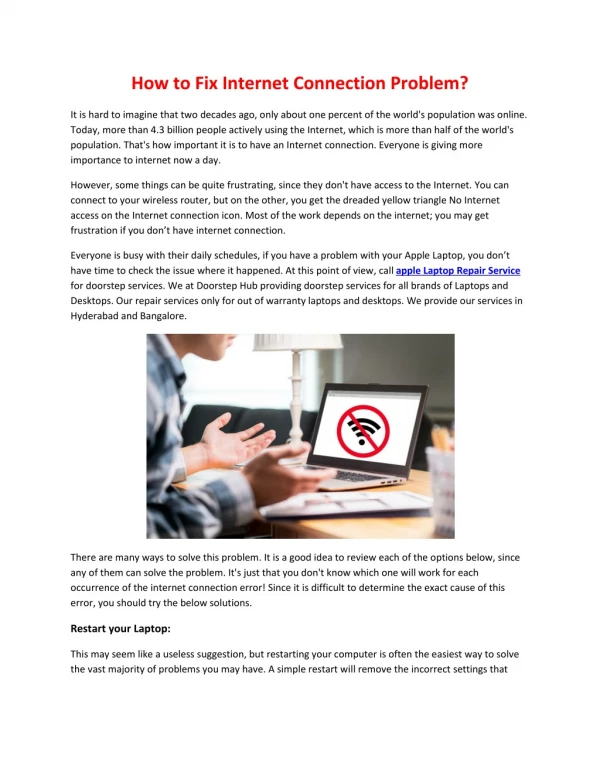
In todayu2019s digital age, a reliable internet connection is not a luxury but a necessity. Whether you're working remotely, attending online classes, or simply streaming your favorite show, a disruption in your internet service can be frustrating. If youu2019re facing issues where the internet is not working, youu2019re not alone. Many PC users often encounter problems and search for solutions on how to fix the internet connection or how to fix the internet on a PC.


How to Fix Internet Connection Issues on a PC
E N D
Presentation Transcript
How to Fix Internet Connection Issues on a PC In today’s digital age, a reliable internet connection is not a luxury but a necessity. Whether you're working remotely, attending online classes, or simply streaming your favorite show, a disruption in your internet service can be frustrating. If you’re facing issues where the internet is not working, you’re not alone. Many PC users often encounter problems and search for solutions on how to fix the internet connection or how to fix the internet on a PC. In this blog, we at MicroSec™, your trusted remote computer repair service provider, will walk you through step-by-step solutions to fix internet connectivity issues effectively. Why Is Your Internet Not Working? There can be several reasons behind internet issues, ranging from minor configuration errors to deeper network-related problems. Some of the most common causes include: A faulty Ethernet or Wi-Fi adapter Incorrect network settings ISP (Internet Service Provider) outages Router/modem issues
Software conflicts or malware Outdated network drivers Identifying the root cause is crucial to applying the correct fix. How to Fix Internet Connection Issues: Step-by-Step Guide 1. Check Physical Connections Before diving into software fixes, inspect your hardware. Ensure your Ethernet cable is securely plugged in or that your Wi-Fi is enabled. Sometimes, simply unplugging and re- plugging the cable or restarting the router can resolve the issue. 2. Restart Your PC and Router This is the classic tech tip for a reason. Restarting your devices helps clear out temporary glitches that may be causing the issue. Turn off your router and modem. Wait for 30 seconds. Restart your PC. Turn your router/modem back on and wait until all lights are stable. 3. Run the Windows Network Troubleshooter Windows comes with a built-in troubleshooter that can automatically detect and fix common internet problems: Go to Settings > Network & Internet > Status. Click on Network Troubleshooter. Follow the on-screen instructions. 4. Check Network Settings Verify if your PC is getting an IP address from the router: Press Windows + R, type cmd, and press Enter. Type ipconfig /all and check your IP address. If your IP starts with 169. x.x.x, your PC is not receiving a valid IP. Reset your router and try again. 5. Update Network Drivers Outdated or corrupted drivers can cause network problems. Here’s how to update them: Open Device Manager. Expand Network Adapters. Right-click on your adapter and select Update driver. Choose Search automatically for updated driver software.
6. Reset TCP/IP and DNS Corrupted TCP/IP settings can be fixed using the Command Prompt: Open Command Prompt (Admin) Type the following commands one by one and press Enter after each: onetsh int ip reset oipconfig /release oipconfig /renew oipconfig /flushdns Restart your PC 7. Check for Malware Sometimes, malicious software can hijack your network settings. Run a full scan using Windows Defender or a trusted third-party antivirus tool. 8. Disable and Re-enable Network Adapter Go to Control Panel > Network and Sharing Center > Change adapter settings Right-click on your connection and choose Disable After a few seconds, right-click again and choose Enable Advanced Fixes for Persistent Issues Change DNS Server Settings Sometimes switching to public DNS servers can resolve connectivity problems: Go to Control Panel > Network and Sharing Center > Change adapter settings Right-click on your active connection > Properties Select Internet Protocol Version 4 (TCP/IPv4) > Properties Choose Use the following DNS server addresses: oPreferred DNS server: 8.8.8.8 oAlternate DNS server: 8.8.4.4 Check Router Settings Log in to your router admin panel (usually by typing 192.168.1.1 or 192.168.0.1 into your browser) and: Make sure DHCP is enabled Check if MAC address filtering is off Ensure the firmware is updated Contact Your ISP If none of these fixes work, your ISP may be experiencing outages. Contact them for support.
When to Call for Professional Help? If you’ve tried everything and still can’t get online, it might be time to contact professionals. At MicroSec™, we provide remote tech support to help resolve issues quickly and securely. Whether you need help with how to fix the internet, computer repair in your area, or general tech support, we’re here to assist. FAQs Q1. Why is my PC not connecting to the internet? Your PC might not be receiving a proper IP address, the network adapter may be disabled, or your router may be malfunctioning. Q2. How to fix internet connection problems in Windows 10/11? Run the built-in troubleshooter, reset network settings, and update your network drivers. Q3. What to do if the internet is connected but not working? Flush DNS cache, change your DNS settings, or check if a firewall is blocking the connection. Q4. Can malware affect my internet connection? Yes, malware can interfere with your DNS or proxy settings. A full scan is highly recommended. Q5. Do I need professional help to fix internet issues? Not always, but if the issue persists after basic troubleshooting, professional help from MicroSec™ can ensure a safe and effective resolution. Q6. Why does my internet keep disconnecting randomly? This can be due to weak Wi-Fi signals, too many connected devices, outdated router firmware, or power-saving settings on your PC. Try updating the router, disabling power- saving, and limiting device connections. Q7. How do I reset network settings in Windows 10/11? Go to Settings > Network & Internet > Advanced network settings > Network reset. This will remove and reinstall all network adapters. Reconnect to your Wi-Fi afterward. Q8. How do I change DNS settings to fix internet issues? Go to Control Panel > Network & Sharing Center > Change adapter settings. Edit the properties of your network and set DNS to 8.8.8.8 and 8.8.4.4 (Google DNS). This often fixes slow or failing connections. Q9. Why am I connected to Wi-Fi, but there’s no internet? This usually means the router isn’t connected to the internet. Restart your modem/router, check other devices, and disable VPN or proxy if enabled. If the issue persists, call your ISP or contact MicroSec™.
Q10. How can I avoid frequent internet problems on my PC? Keep your drivers and OS updated, use a reliable antivirus, and reboot your router regularly. For ongoing support, consider a remote IT plan with MicroSec™. Final Thoughts Dealing with an unstable or dead internet connection can be stressful, especially when you need to stay connected for work or personal use. By following the steps outlined above, you can resolve most issues without needing to leave your home. And if all else fails, MicroSec™ is just a click away to offer expert help through our remote PC repair services. We specialize in making tech support easy, accessible, and secure for everyone. Looking for reliable tech support for your computer issues, or need help with the internet not working on your PC? Contact MicroSec™ now and get connected with a professional in minutes. Stay connected. Stay secure. For a detailed insight please visit: https://www.microcybersec.com/post/how-to-fix- internet-connection-issues-on-a-pc