Understanding the GALILEO Toolbar: Features, Search Options, and Customization
The GALILEO Toolbar is a powerful tool designed for seamless access to library databases, journals, and catalog searches directly from your browser. Users can easily search various consortia and public library resources, and utilize right-click options to enhance their research. Customization features allow you to modify links and search preferences according to your needs. For assistance, contact our help desk at helpdesk@usg.edu or visit our website. Discover how the GALILEO Toolbar can streamline your research process and provide direct access to key educational resources.

Understanding the GALILEO Toolbar: Features, Search Options, and Customization
E N D
Presentation Transcript
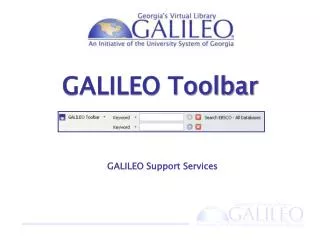
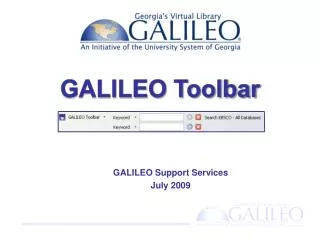
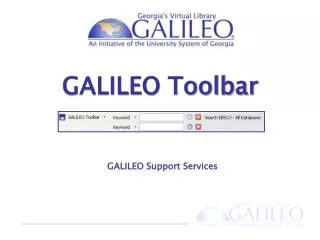
GALILEO Toolbar GALILEO Support Services
Search from the Toolbar Search databases directly from the toolbar
Search from the Toolbar Search for journals and magazines
Search from the Toolbar Search in your library catalog
Searches for Different Consortia K-12 Searches Public Library Searches
Link Directly to Key Resources Go directly to popular GALILEO databases
Links for Different Consortia K-12 Links Public Library Links
Right-Click Menu Highlight any text and right-click it to search
Right-Click Menu Highlight any text and right click it to search
Right-Click Menu Right click titles or author names to check your library catalog
Right-Click Menu Right click an ISBN or ISSN to search for it
Authenticate via Proxy Before you pay, right click to send link through the GAILLEO proxy. Your institution may have already paid for the full text.
Change Your Preferences Change LibX preferences for toolbar features
Customizations • Request changes for: • links • searches
Resources for You See the GALILEO Toolbar scope screen for resources and links to informational FAQs
Thank you! Contact Us http://www.galileo.usg.edu helpdesk@usg.edu