Step-by-Step Guide to Upgrade DVD Player Software Using Disc or USB
Learn how to upgrade your DVD player software using a disc or USB in this comprehensive guide. The upgrade process begins with copying the provided file to your PC desktop. If the file is compressed, extract it to BIN format; otherwise, rename it to MTK.bin. Use Nero StartSmart to create an upgrade disc by adding the MTK file and following the prompts. For USB upgrades, simply copy the MTK file and plug it into the DVD player. Follow the displayed instructions to complete the upgrade. Ensure power is not interrupted during the process for a successful upgrade.

Step-by-Step Guide to Upgrade DVD Player Software Using Disc or USB
E N D
Presentation Transcript
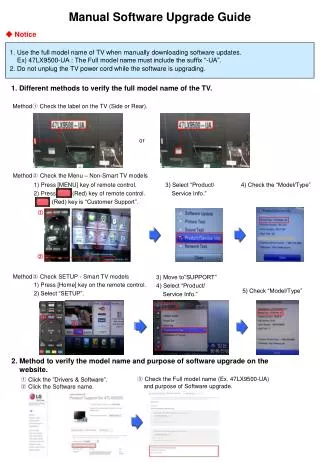
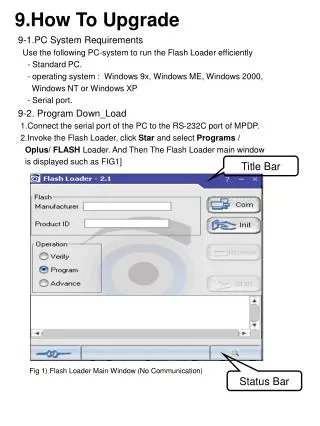
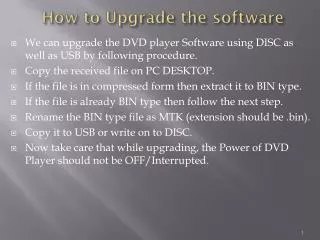
How to Upgrade the software • We can upgrade the DVD player Software using DISC as well as USB by following procedure. • Copy the received file on PC DESKTOP. • If the file is in compressed form then extract it to BIN type. • If the file is already BIN type then follow the next step. • Rename the BIN type file as MTK (extension should be .bin). • Copy it to USB or write on to DISC. • Now take care that while upgrading, the Power of DVD Player should not be OFF/Interrupted.
DISC WRITING - MTK Use the Nero start smart to make the upgrading disc. • Open the Nero start smart • Click on make data CD • Add the MTK.BIN file by clicking on Add button. • Now right click on added file in Nero window, the file will get added for writing. • Click on Next Button. • In Next window witeDISC Name to MEDIATEK • Now click on Burn option. • Let it be burn completely. • The software DISC is Ready Now.
UPGRADING - MTK How to upgrade through Upgrading Disc/ USB Through Disc • Insert the Upgrading disc in to DVD player . • It will display the message to “Press Play key to start upgrading” • Press the Play or Enter Key through remote. • Tray will come out automatically. • Now take the upgrading Disc out. • Do not switch off or press any key during this condition. • With in 10-15 seconds upgradation will be complete & disc will go inside automatically. • It is done. Through USB • Copy the MTK.BIN file directly to USB • Plug the USB to DVD Player • & follow the same procedure as mentioned above. Note: Through USB upgradation take the USB out after completion of Upgrading