Download

1 / 11
130 likes | 236 Vues
This document serves as a comprehensive introduction to MATLAB, detailing its functionality as a powerful tool for automating mathematical computations. It provides insight into MATLAB’s interpretive environment where calculations can be done linearly, while also explaining the use of its scripting language for program writing. The overview covers essential topics including complex number handling, simple plotting, 3D plotting, matrix operations, and the use of M-files for script execution. It is designed to help users understand the various engineering applications of MATLAB, including its specialized toolboxes.

E N D
BAE 1012 Introduction to MATLAB Notes to complement on-line demo
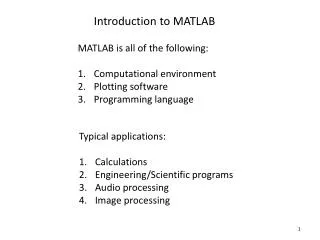
MATLAB Overview BAE 1012 • What is MATLAB • A program that may be used to automate mathematical computations • Interpretive environment, calculations at the command line • Includes scripting language, you can write programs • Rich with engineering oriented functions • Modern engineering tool widely used in engineering • Includes “Toolboxes” for specialty applications • Controls • Signal Processing • Bio-system simulation • Includes block diagram based simulation “Simulink”
Simple Calculations BAE 1012 • Command Line Interpreter • Set variables • A=3 • B=[3,4,7] row vector • C=[3; 4; 7] column vector • D=[1,2;3,4] matrix • Show variables • Who,whos • Clear variables • Clear, clear x • Set iterated list • E=1:0.2:10 (start : increment : end)
Getting help BAE 1012 • Best: • Select Help from the menu (MATLAB 6) • Next Best (UNIX/LINUX): • Use the command HELP from the command prompt • “HELP” Alone for general – list topic areas • “Help topic” for help on “topic” • Topics are divided into general areas • Controls, Signal processing, etc. • Local functions may be added to the local dir • Organized with • General help • Toolbox help
Complex Numbers BAE 1012 • Set number • A=3 + 4i • Magnitude • M=abs(A) • Angle • Alpha=angle(A) • Conjugate • A_star=conj(A) • Imaginary part / real part • Imag_a = imag(A) • Real_a=real(A) • Try sqrt(-1)
Simple Plotting BAE 1012 • Simple x/y plot • x=0:1:20 • x=sin(x) • plot(x,y) • Set line /point type • plot(x,y,’c+’) cyan “+” points • plot(x,y,’c+’,x,y,’y-’) cyan points and yellow line • Set Titles and labels Labels • xlabel(‘X-axis’), Ylabel(‘Y-Axis’) • Title(‘Title’) • Alternative: Use figure menu /Edit/Axis Properties • Set axis titles • Main title • Line properties etc.
3D plot BAE 1012 • Set x and y values • x = 0:.1:20; • y = 0:.1:20; • Create matrices for “xg – yg” grid • [xg, yg] = meshgrid(x,y); • Calculate an equation for “z” on the grid • z = sin(pi*xg/20).* sin(pi*yg/20); (note the .* for element by element multiplication where xg and yg are 20x20 matricies) • Plot the surface or mesh • surf(x,y,z) or mesh(x,y,z)
Matrix math BAE 1012 • Consider a set of equations: • Given x1,x2 you can find y1,y2. • The more usual problem is y1,y2 are given and you need x1,x2 • Solution: • Write in matrix form and solve
Matrix math BAE 1012 • Example • Set y,A • Y = [ 3 ; 4 ] • A = [ 7 , 4.5; 3.3, 9.1 ] • Find A inverse (A-1) • Ai = inv(A) • Calculate x • x = Ai*y
Additional matrix operations BAE 1012 • Transpose a matrix • (switch rows and columns) • y = y’ • To multiply element by element by a scalar • y = sin(y) .* y (replace each element by “y sin y”)
M-File -programs BAE 1012 • Use File menu to create or open a script file • Use Matlab commands as script • Save into m-file space and then execute by file name on the command line • Example: • Save as sin_surf.m • Execute as sin_surf on the command line for i = 1:30 for j = 1:30 z(i,j) = sin(3.14159 * ((i - 16) ^ 2 + (j - 16) ^ 2) / (7 * 30)) *( j - 1); end end surfc(z)