Mastering Linux Commands: Creating and Managing Files and Directories
Dive into the essential commands for creating and managing files and directories in Linux. Learn to use `mkdir` to create new directories, navigate your home directory with `cd`, and verify your current location with `pwd`. Discover how to set permissions, create empty files with `touch`, and utilize file-matching metacharacters for efficient file management. Explore techniques for file redirection and understand quoting with echo commands. Master the sort command to organize files and execute sequential commands for enhanced productivity.

Mastering Linux Commands: Creating and Managing Files and Directories
E N D
Presentation Transcript
Using Linux Commands(2) Lab 5
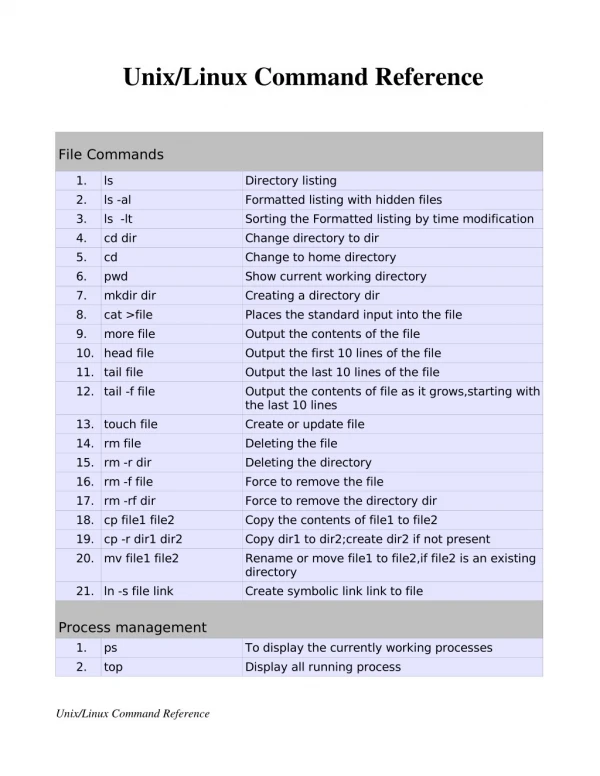
Creating files and directories • Use the command mkdir to create a new directory to the current working directory. • $ mkdirdirectoryName
Creating files and directories • Go to your home directory. Type cd. • Make sure that you got to your home directory, type pwd • Create a new directory called test in your home directory: • Check the permissions of the directory by typing: • Suppose that you want to prevent everyone else from using or viewing the files in this directory: • Make the test directory your current directory :
Creating files and directories • To create a directory(test) in the Desktop, we have two ways: • mkdir /home/chris/Desktop/test • cd /home/chris/Desktopmkdir test • NOTE: • The -d option tells ls not to list the contents of the test directory; just show us the listing for the directory itself.
Moving, copying, and deleting files * remove all files in the current directory
Create empty files • To create an empty file in the current directory use the command touch • $ touch file1 file2 file3 Using file-matching metacharacters • Metacharacters help to match one or more files without typing each filename completely. • * This matches any number of characters(zero or more characters). • ? This matches any one(single) character. • […] This matches any one of the characters between the brackets, which can include a dash-separated rang of letters or numbers.
Using file-matching metacharactersThis matches any number of characters *
Using file-matching metacharactersThis matches any one(single) character?
Using file-matching metacharactersThis matches any one of the characters between the brackets […]
Using file-redirection metacharacters • < Direct the contents of a file to the command • > Direct the output of a command to a file, overwriting any existing file • >> Direct the output of a command to a file, adding the output to the end of • existing file
echo Command • Use echo command to display text or value of variable. echo [options] [string, variables...]
Quotes • "Double Quotes“ • variables and command substitution(except \and $). • 'Single quotes‘ • protects everything enclosed between two single quote marks. • It is used to turn off the special meaning of all characters ( NOsubstitution of variables and commands). • `Back quote` • Used with commands only. • To execute command.
echo Command • Options-nDo not output the trailing new line.-eEnable interpretation of the following backslash escaped characters in the strings: \a alert (bell)\b backspace\n new line\t horizontal tab
Sort command • Sort the lines of text files. $ sort fileName • by default it will sort in normal order(alphabetical 0-9 A-Z ). • Options • -rReverse normal order(reverse alphabetical Z-A 9-0).-nSort in numeric order(Sorts by the beginning of the number at the beginning of the line.)-nrSort in reverse numeric order • Note that this command does not sort the actual file, it just displays the sorted output on your terminal.
Sequential commands • To run a sequence of commands type several commands on the same command line and separating them with semicolons(;)
References http://www.podgrid.org/linux-bible/linux-bible-page109.html