Introduction to Java for Video Games Course at Duke University
This course offers an introduction to Java programming and computer science concepts through video game design. Designed for non-computer science majors and beginners, it focuses on basic programming skills, algorithms used in games, and webpage development. Students will work in pairs or triples on homework assignments, tests, and a final project. Key learning outcomes include understanding core programming and computer science principles while having fun creating and modifying video games. Visit the course webpage for more details and the first assignment.

Introduction to Java for Video Games Course at Duke University
E N D
Presentation Transcript
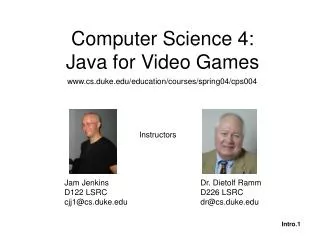
Computer Science 4:Java for Video Games www.cs.duke.edu/education/courses/spring04/cps004 Instructors Jam Jenkins D122 LSRC cjj1@cs.duke.edu Dr. Dietolf Ramm D226 LSRC dr@cs.duke.edu
Introduction • Administrative material • Introduction to Java • Webpage development • First assignment (due Friday)
Administrative Material • Course Webpage • What you will learn? • Is this course right for you? • Structure of the course
What you will learn in this course • Two primary goals are to teach • Basic programming • Basic computer science concepts • To explore these topics we’ll study • Video game design • Algorithms used in video games
What you won’t learn in this course • The same amount and type of programming as in CPS6 for majors • Enough about Java or video games to market your own games • Programming concepts that will only be useful using our video games package
Who should take this course • Non-computer science majors • Students with little or no background in computer programming • Undecided major, but probably not computer science
Who should not take this course • Computer Science Majors • Computer Programmers • Undecided major, but probably computer science (take CPS 6 for majors instead)
Structure of the Course • Homeworks 50% • Weekly • Typically done in pairs or triples • Build toward project • Tests 30% • 2 Each 15% (no final) • Project 20% • Used in place of final • Done in pairs or triples
Introduction to JavaDownloading Source Code • Open course website:http://www.cs.duke.edu/education/ courses/spring04/cps004/ • Click on Code at the upper right • Right click on pong.jar • Select Save Link Target As • Save to Desktop
Introduction to JavaUsing Eclipse • Starting Eclipse • Making a project • Importing files into a project • Editing source code • Compiling source code • Executing source code • Saving project
Starting Eclipse • Double Click on Classroom Applications on the Desktop • Double Click on eclipse.exe
Making a project • File->New->Project • Java->Java Project • Click on Next • For Project Name type Sample • Click on Finish • Switch to Java Perspective? Yes
Importing files into a project • File->Import • Zip file • Click on Next • From zip file Click on Browse • Click on Desktop • Doublc click pong.jar • Open • From Into folder Click on Browse and select Sample • Finish
Executing source code • Click on + by Sample • Click on + by pong • Click on Pong.java • Run->Run as->Java Application • Play the game • Using the mouse • Using the keys ‘i’ and ‘m’
Editing source code • Double Click on PongLoop.java • Go to line 69 where it says position1.y-=2; (you’ll see 69:23 in the lower right hand corner as you mover the cursor in the code) • Change it to say position1.y-=8; • Click on the disk icon to save (or File->Save)
Compiling source code • Always be sure to save any changes before compiling (done in the previous step) • Project->Rebuild All
Executing the modified code • Click on Pong.java • Run->Run as->Java Application • What changed?
Saving project • During class projects are saved on the desktop • Before leaving the lab be sure to save your project to your acpub account
Saving project • Click on Sample • File->Export • Jar file • Click on Next • Select P drive • Create and/or change into cps4 folder • Use filename mypong.jar • Select Export java source files and resources • Click on Finish
Web Page Development • Where files should be placed • How to create and use directories (folders) • Using Netscape Composer
Webpage Placement • Your webpage is located in P:\public_html • Your individual course webpage will be located in P:\public_html\cps4 • Your webpage is viewable fromhttp://www.duke.edu/~yourlogin • Your course webpage is viewable fromhttp://www.duke.edu/~yourlogin/cps4
Creating Directories • Double Click on My Computer • Double Click on P drive (could also be indicated by your login) • Double Click on public_html • File->New->Folder • Type in cps4 and Enter
Netscape/Mozilla Composer • Open up Netscape/Mozilla • Window->Composer • Type Hello in the editor • File->Save as • Enter Hello as the title for the page • Select P:\public_html • Save as Hello.html (assuming you don’t already have one in your own webpage)
Netscape/Mozilla Composer • In Netscape/IE, go tohttp://www.duke.edu/~yourlogin/hello.html • If you don’t already have a webpage prior, rename Hello.html to index.html and go tohttp://www.duke.edu/~yourlogin/ • index.html is searched for automatically if no file name is given • Experiment on your own time with Composer to make more webpages and add links
First Assignment • Visit the course website and complete the first assignment due on Friday