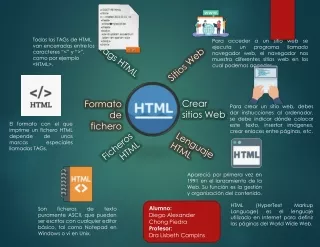
Introduction to HTML: Creating Web Pages with Essential Tags and Tools
Learn the fundamentals of HTML to create web pages using professional editors like Adobe Dreamweaver and simple programs like Notepad. This guide covers the structure of HTML documents, including essential tags such as ``, ``, and heading styles `` to ``. Discover how to format text, create hyperlinks with ``, insert images using ``, and add comments for better readability. By the end of this tutorial, you'll have a foundational understanding of HTML necessary for web page creation.

Introduction to HTML: Creating Web Pages with Essential Tags and Tools
E N D
Presentation Transcript
HTML Hypertext Mark-Up Language Web Page Creation
Where do we create our webpages? • Professional editors such as • Adobe Dreamweaver • Microsoft Expression Web • CoffeeCup HTML Editor • Within a word processing program such as • Notepad • Wordpad • Word OR
TAGS • HTML tags are keywords (tag names) surrounded by angle brackets like <html> • HTML tags normally come in pairs like <b> and </b> • The first tag in a pair is the start tag, the second tag is the end tag • Start and end tags are also called opening tags and closing tags
Let’s some coding…. • Step 1: Start Notepad • To start Notepad go to: • Start All Programs Accessories Notepad
Every HTML code begins with? • <html> • This tag states that everything below this tag is included in this page.
Every HTML code ends with? • </html> • This states that all information above this tag should be included in the HTML CODE
The body • <body> is your opening tag for the information that you will display. Be sure to end it with </body>
headings • There are 6 styles of headings.. • <h1> </h1> largest • <h2> </h2>large • <h3> </h3>medium • <h4> </h4>small • <h5> </h5>smaller • <h6> </h6>smallest
paragraphs • <p> Information should be placed here. If you would like to start a new paragraph, close this paragraph with </p> and start a new one.
Changing the text • <b> </b> bold • <em> </em> emphasize • <u> </u> underline
hyperlinks • Use the <a> tag • <a href="http://www.w3schools.com">This is a link</a> Note that what text that you would like to have displayed as your link.
images • Pics, images and graphics use the <img> tag • <imgsrc="w3schools.jpg" width="104" height="142"> • The width and height measurements are included also. Be sure to know the name of the saved image.
Horizontal line and comments • <hr> </hr> • <!--> defines a comment to help you remember and make the program more readable.
Superscript and Subscript • <sub> </sub> • <sup> </sup>