Hyrax Installation and Customization
This presentation outlines the best practices for installing and customizing Hyrax, a powerful platform for data interoperability. It covers the architecture of Hyrax, including its flexible deployment on single or multiple machines, security considerations, and the configuration of various components such as the Backend Data Processing (BES) and Online File System (OLFS). Participants will learn about the importance of authentication and authorization, how to set up firewalls, and how to customize catalogs and logging. Ideal for system administrators and data managers looking to enhance their data services.

Hyrax Installation and Customization
E N D
Presentation Transcript
Hyrax Installation and Customization ESIP ‘08 Summer Meeting Best Practices in Services and Data Interoperability Dan Holloway James Gallagher
Outline • Hyrax Architecture • Example Configuration of Hyrax • Hyrax Customization
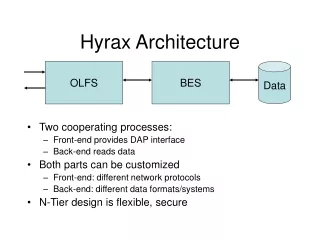
OLFS BES Data Hyrax Architecture • Two (or more) cooperating processes: • Front-end provides DAP interface • Back-end(s) read(s) data • Both parts can be customized • Front-end: different network protocols • Back-end: different data formats/systems • N-Tier design is flexible, secure
BES Commands DAP2 OLFS BES THREDDS HTML XML- encapsulated object Java Servlet Engine Unix Daemon Optional THREDDS catalogs File system with data files, SQL Database, … Hyrax Architecture
Hyrax Architecture Summary • Hyrax can be installed on one machine or several • Installation security merits serious consideration • Authentication & Authorization are handled by the web servers (Tomcat and Apache)
Hands on: Hyrax Configuration • Choices: • Single or Multiple machine • Single or Multiple back-end servers • Tomcat or Apache web server • Data formats • Catalog customization • Security • Testing • Command line tools for system administrators • Web browser
ESIP Workshop Configuration • Run a single BES and the OLFS on one host (the virtual machine running SLAX Linux) • Use Tomcat running on port 8080 • Data formats: NetCDF and FreeForm • No custom THREDDS catalog • No firewall
ESIP Hardware • SLAX Linux VMware Virtual Appliance • All the software needed has been built, installed and configured • Start the virtual machine now…
Starting the Virtual Machine • Insert the CD-ROM • Drag the opendap_vm and Wintools folders to the Windows desktop • Copy the ISO image from the CD ROM to the harddisk (in a command window, mkdir C:\SLAX and then use copy or dd to copy the iso to the new directory). • The dd command is in the Wintools folder • The C:\SLAX directory is coded into the virtual machine; use Vmware Workstation/Fusion to edit • Open the opendap_vm folder and double click on the opendap_vm.vmx virtual machine configuration file or start VMware Player/Workstation/Fusion and open opendap_vm.vmx from there. • The virtual host will boot and the SLAX (slackware Linux with KDE) desktop will appear.
Installing the Software • Already present on the virtual machine • But, if it wasn’t, you’d go to the OPeNDAP web site* and download: • Binaries or source for the BES and the data handlers needed. • Get the OLFS web archive file (which is a compiled java servlet). • You also need the Tomcat servlet engine * http://opendap.org/download/hyrax.html
Location of Server Files on the Virtual Machine • On your virtual machine: • The Tomcat servlet engine is in /usr/local/javadev/apache/tomcat-5.5.12 (this is the value of $CATALINA_HOME) • The BES, data handlers and related source files are in /usr/local/src. The BES has been built and installed in /usr/local/ ($prefix) • The OLFS web archive file is $CATALINA_HOME/webapps/opendap.war • BES: bes.conf, found at $prefix/etc/bes/bes.conf • OLFS: olfs.xml and catalog.xml, found at $CATALINA_HOME/content/opendap
Background: Starting the Server • Start the BES (back-end data processing component) • Use bescmdln to verify it’s working • Start Tomcat: This automatically starts all installed servlets • Servlets are installed by copying the .war file to the servlet’s webapps directory • Verify it’s working using a web browser
Start Tomcat & the OLFS • Typical steps: • Unpack the olfs jar-file • Copy the opendap.war file to Tomcat’s webapps directory • Start Tomcat • Since all but the last step has been done already, start Tomcat: • /usr/local/javadev/apache-tomcat-5.5.12/bin/startup.sh
Verify Tomcat is running http://localhost:8080
…and Hyrax http://localhost:8080/opendap
Complete the Configuration • Steps you would typically perform: • Security: Set up a firewall! Limit access to port 10002 to this host only • Custom catalogs: Edit the catalog.xml configuration file. By default automatic catalogs are generated • Logging: Edit the log4j.xml file. By default all accesses are logged
Stopping Hyrax First, stop Tomcat using ‘shutdown.sh’ …then stop the BES using ‘besctl’
Hyrax Configuration Summary • For our chosen configuration, we used only Tomcat, plus the Hyrax web application which consists of the BES and the OLFS • The tools bescmdln, getdap and a web browser were used to test the installation • There are a lot of options, but the default settings produce a working server • Security is a must for a web application; use a firewall to isolate the BES so only the local host can connect to it.