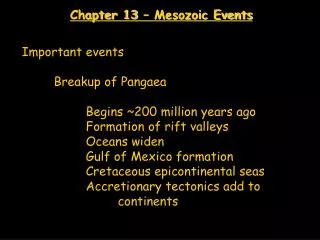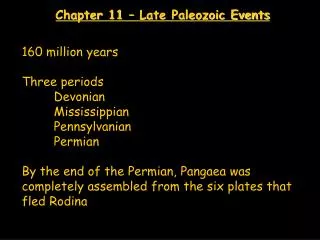

Chapter Events
E N D
Presentation Transcript
Basics and FAQ (Click on any question you have to go directly to the answer, while in presentation mode) • Creating an event • How do I set price(s) for the event? • What if registering is done via another site? • What does checking “disable pay at the door” really do? • What is the Event Featured Image? • Where do Sponsors appear? • How do I share my event? • General Questions
Return to FAQ Creatingan Event • Everything you’ll ever need for an event can be found under the “Events” and “Sponsors” tabs • International Chapters will not have “event category” or “tiered pricing” available because they can’t use the online payments
Return to FAQ How do I set prices? • Use “Event Category” for easily setting a range of prices • Use “Event Price” if you have one price and want it aspay at door.. • Groups of tickets • Tickets
Return to FAQ How do I set prices? • Name tickets accordingly • Check the box if you don’t want guests to have access to this ticket • Save it • If you don’t want this ticket to be selectable, mark as “inactive”
Return to FAQ How do I set prices? • Name categoryaccordingly • Check the group of tickets you want available for that event
Return to FAQ What if registering is done on another website? • The site is still a powerful way to spread the event • Include an emphasized link to the registration • No big green “register” button will appear • For sites, copy and past url • For documents, use “link” button (works for sites as well)
Return to FAQ What does “disable pay at the door” do? • Checking “pay at door” adds additional green text • “Pay at door” is removed from registrants’ view
Return to FAQ What is the Event featured image? • Decide which image you want registrants to see on the front end • Upload here
Return to FAQ Where do sponsors appear? • Find “Sponsors” tab on the dashboard • Select “add new” • Enter a name and upload an image • Sponsors that you upload will appear at the bottom of your event description • Select one or more Sponsors to be included in the event
Return to FAQ How do I share my event? • You may want to share a direct link to your event! • Find your event on the calendar and click on it
Return to FAQ How do I share my event? • Scroll to the bottom and click on the twitter link • A new tab opens, you can copy the given url for a direct link!
Return to FAQ How do I share my event? • Or simply share the event by using the email, facebook, twitter, and linkedin buttons
Return to FAQ notes • If you still have questions after referring to this presentation, feel free to contact byums_help@byu.edu • Remember the site will only be as powerful of a tool as you make it!