How to Add a Printer on Mac and Windows XP/7
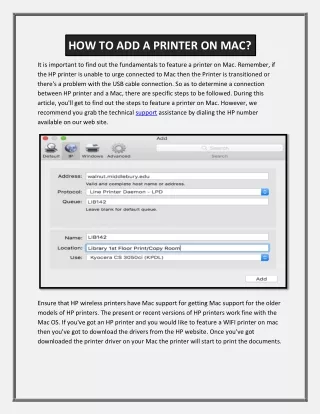
Learn how to easily add a printer to your Mac or Windows XP/7 system. For Mac users, access System Preferences from the dock or Apple menu, then navigate to Print & Fax. Click the "+" sign to add a printer, select the IP icon, and input your printer information (e.g., LPD protocol, printer address). For Windows XP/7, open the Run prompt and type in the printer address to find and connect to the desired printer. Follow these steps to ensure smooth printing for your grade level.

How to Add a Printer on Mac and Windows XP/7
E N D
Presentation Transcript
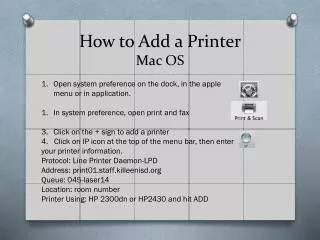
How to Add a PrinterMac OS Open system preference on the dock, in the apple menu or in application. In system preference, open print and fax Click on the + sign to add a printer 4. Click on IP icon at the top of the menu bar, then enter your printer information. Protocol: Line Printer Daemon-LPD Address: print01.staff.killeenisd.org Queue: 045-laser14 Location: room number Printer Using: HP 2300dn or HP2430 and hit ADD
How to Add a PrinterWindows XP and Windows 7 • Click on • Click on • At the run prompt type \\print01.staff.killeenisd.org • A list of printers will appear in a window, find 045-laser14 the one your grade level will be using • Right click on your printer and select connect. Windows 7 • Click on • At the eenter \\print01.staff.killeenisd.org • Follow the steps for Windows XP