Document Formats for the Web
Document Formats for the Web Lunch and Learn Session February 9, 2001 Bill Vilberg Instructional Advancement Center Background Philosophy Why is there no “correct” way? Course of study = obstacle course 5 courses / semester Different instructors Different requirements

Document Formats for the Web
E N D
Presentation Transcript
Document Formats for the Web Lunch and Learn Session February 9, 2001 Bill VilbergInstructional Advancement Center
Background Philosophy Why is there no “correct” way?
Course of study = obstacle course • 5 courses / semester • Different instructors • Different requirements • Different procedures • Technical material (at least in major) Ed-Tech Lunch and Learn Series
Outcome = self-confidence • Student can meet external goals • Student can learn new material • Student can communicate in different ways • (Not: Student knows “the subject” or has “the skills”) Ed-Tech Lunch and Learn Series
However you do it is OK! • Be helpful or demanding • Provide explicit guidance or open ended tasks • Grade on a curve or a percentage • Use rubrics or subjective guidelines • Give lectures or hold discussions Ed-Tech Lunch and Learn Series
As long as… • You respect and value your students • You show your passion for your subject • Students experience a variety of faculty members (obstacles) Ed-Tech Lunch and Learn Series
Word Documents Formats for the Web
Example 1 • Put a handout on-line • Created in Microsoft Word • Saved as “.doc” file Ed-Tech Lunch and Learn Series
Alternatives • 1. Upload “.doc” file • 2. Save “.doc” as “.html” and upload it • 3. Save “.doc” as “.rtf” and upload it • 4. Copy and paste text into document • 5. Create “.pdf” file from “.doc” and upload it • 6. Print it and make copies for the class Ed-Tech Lunch and Learn Series
1. Upload “.doc” file • (+) Easiest for you; no conversion needed • (+) Gives students actual document, just as you made it • (+) Lets you use full power of Word • (-) must have Word or (free) Word Viewer to view the document • (-) Word documents are not as small as they could be Ed-Tech Lunch and Learn Series
Demonstration 1 1. Upload “.doc” file
2. Save “.doc” as “.html” and upload it • (+) Easiest for students; HTML is most compatible format with the Web • (+) Allows use of formatting, tables, and graphics • (+/-) Small documents as native HTML; Microsoft HTML is larger than usual • (-) Loses some formatting Ed-Tech Lunch and Learn Series
Demonstration 2 2. Save “.doc” as “.html” and upload it
3. Save “.doc” as “.rtf” and upload it • (+) Opens with any word processor • (+) Available from any word processor • (+) Keeps most formatting • (-) Loses some specialized formatting Ed-Tech Lunch and Learn Series
Demonstration 3 3. Save “.doc” as “.rtf” and upload it
4. Copy and paste text into document • (+) Brings in text from anywhere • (+/-) No attachment/link; easy to access by students; takes up a lot of space • (-) Loses ALL formatting except paragraph breaks Ed-Tech Lunch and Learn Series
Demonstration 4 4. Copy and paste text into document
5. Create “.pdf” file from “.doc” and upload it • .pdf = Adobe Acrobat portable document format • (+) Preserves formatting perfectly • (+) Protects document from alteration • (+/-) Acrobat Reader is free and widely available, but a “plugin” • (+) Allows easy saving and printing of file • (-) Program to create .pdf files costs ~$80 • (+) Send files to iac.help@miami.edu for conversion Ed-Tech Lunch and Learn Series
Demonstration 5 5. Create “.pdf” file from “.doc” and upload it
6. Print it and make copies for the class • (+) You know the process • (+) You can delegate the process • (+) Students can’t make excuses about lack of access or problems getting to the file • Good if everyone HAS to have it in class • (-) Costs department for duplication • (-) Need process for students who miss class Ed-Tech Lunch and Learn Series
No Demonstration 6 6. Print it and make copies for the class
PowerPoint format options • 1. Upload “.ppt” file • 2. Save “.ppt” as “.pps” and upload it • 3. Save “.ppt” as “.html,” save “html” as “.zip” and upload it • 4. Save “.ppt” as “.rtf” and upload it • 5. Create “.pdf” file from “.ppt” and upload it • 6. Print it and make copies for the class Ed-Tech Lunch and Learn Series
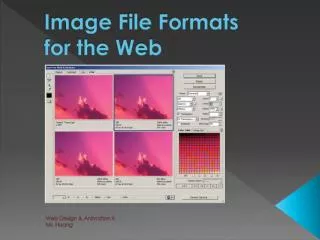
Graphic Formats • .jpg for photographs • .gif for graphics with solid blocks • Check embeded pictures in Word Ed-Tech Lunch and Learn Series
File names • Use 8.3 naming • No spaces, short names, extensions Ed-Tech Lunch and Learn Series
Verify • Expect problems • Verify it from a student account • Be ready for the students • Call if you have questions • Microgroup: 305-284-2944 • IAC help desk: 305-284-3949 Ed-Tech Lunch and Learn Series
Document Formats for the Web Thank you!