Setting Up and Developing on the Android Development Phone 1
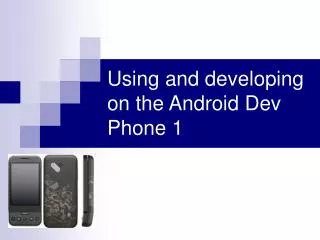
This guide provides step-by-step instructions for setting up and developing on the Android Development Phone 1 (Dev Phone 1). Begin by skipping the Gmail credentials setup, enabling Wi-Fi, and signing into a Google app. Explore the Market for categorized applications such as entertainment, travel, and communication, including useful tools like Power Manager and GPS toggles. Ensure you have the latest SDK software and have enabled USB debugging. Use Eclipse for an efficient development experience by connecting your device directly.
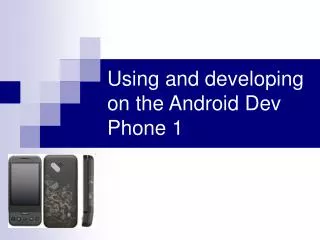

Setting Up and Developing on the Android Development Phone 1
E N D
Presentation Transcript
Setup • At the gmail credentials screen, skip the step • Go to Settings->Wireless Controls • Enable Wi-Fi • Go to a google app (gmail, calendar, etc) and then give your @gmail.com credentials
Market Downloading apps • In the pull-up menu, click on Market • Apps are categorized • Entertainment • Travel • Communication • Etc • Useful apps • Power Manager • ToggleGPS
Setting up developing on Dev Phone 1 • New version of SDK!!! • android-sdk-windows-1.1_r1.zip • New website for developers • http://developer.android.com/ • Make sure you have: • the latest of software (SDK+IDE) • Removed old versions • Updated paths • Enabled UDB debugging on the Dev Phone • When the O/S asks for the drivers point to android-sdk-windows-1.1/usb_driver/x86 or /amd
Developing on Dev Phone 1 • Once the device is connected • Check using “adb devices” • Using Eclipse, the SDK will automatically chose the Dev Phone instead of an emulator