Understanding Data Queries in ArcMap: A Comprehensive Guide
Data queries are essential for effective GIS project management in ArcMap, facilitating both data preparation and final analyses. This guide explains how to select data based on specific criteria using attribute and spatial queries. You'll learn about SQL syntax for attribute queries, Boolean expressions, and how to connect them using logical operators like AND, OR, and NOT. Moreover, explore methods for spatial feature selection, such as by cursor, graphic, or spatial relationship. Enhance your GIS skills by mastering the querying process for more accurate and relevant analyses.

Understanding Data Queries in ArcMap: A Comprehensive Guide
E N D
Presentation Transcript
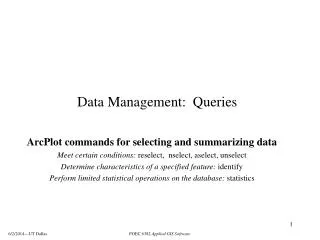
Data Queries Selecting features in ArcMap
Data queries • Important part of a GIS project • Can be a part of your data preparation or final analysis • Data Queries (selecting data based on a question or criteria) • Attribute Query • Spatial Data Query
Attribute Data Query • SQL (Structure Query Language) is used select records from an attribute table • Example of a SQL statement for retrieving data Select * Fromcounties WhereNAME = Monterey • Query Expressions • Boolean expressions • Combination of field, a value, and a logical operator (=, +, - , etc..) • Boolean connectors (AND, OR, XOR, NOT) • Connects two expressions
Query Expressions Expression • Combination of field (column), value, and an operator • Example: • Name = Monterey • Pop2000 >=400,000 • State_Name= Calfornia Connectors • Keywords that connect two expressions • State_Name = California AND Pop2000>= 400,000 • State_Name = California OR Pop2000>= 400,000
AND Connector • State_Name = California AND Pop2000 >= 400,000 • AND - satisfy both criteria - intersection
OR Connector • State_Name = California OR Pop2000 >= 400,000 • OR - satisfy either one or both criteria - union
Spatial Data Query 3 Ways to select features spatially (by location) • Feature selection by cursor - (select features tools) • Feature selection by graphic - (draw a graphic and use it to select features) • Feature selection by spatial relationship • Containment (fall within a feature) • Intersect (intersect a feature) • Proximity ( within a specified distance)
Working with selected features • create new selection • add to currently selected features • remove from currently selected features • select from currently selected features You can add, remove or select from currently selected features using location and attribute queries.
Isolating your selected features • Permanently save your selected features • save as new data file (shapefile or geodatabase) • Right-click on layer data Export data • Temporary save your selected features • create a temp layer in your ArcMap project as • Right-click on layer selection create layer from selected features • One extra step …. • --- to create a .lyr file • Right-click on layer Save As Layer File
Summary of selection types • Select by attribute using SQL • In ArcMap you can find this in the: • Selection menu • Attribute table • Definition query – displays data only • Located in the layer’s properties • Spatial Query: • Manually using the cursor • Select by graphics • Select by Location dialog