How to Add Actions and Format Picture Backgrounds for Buttons
Learn how to enhance buttons with actionable features and customizable picture backgrounds. This guide provides step-by-step instructions on adding actions to buttons, including right-clicking to access action settings and selecting hyperlink options. Additionally, discover how to format buttons with attractive picture backgrounds by utilizing the Fill Effects feature. Whether you're working with animal or flower buttons, this tutorial covers everything you need to know to make your buttons interactive and visually appealing.

How to Add Actions and Format Picture Backgrounds for Buttons
E N D
Presentation Transcript
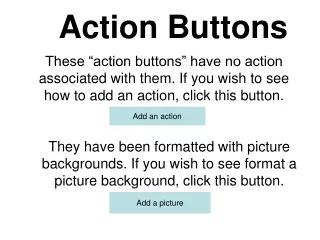
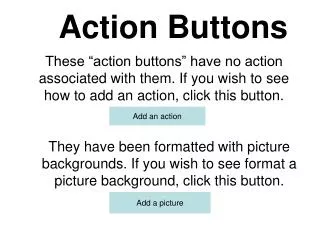
Action Buttons Add an action These “action buttons” have no action associated with them. If you wish to see how to add an action, click this button. They have been formatted with picture backgrounds. If you wish to see format a picture background, click this button. Add a picture
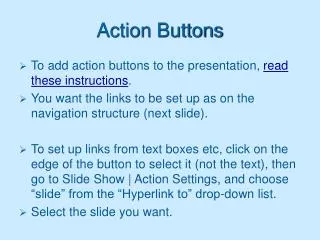
How to add an action • Right-click a button and select Action Settings. • Click in the Hyperlink radio button and select an action. • If you need more information on action buttons click the button below. Take me to a tutorial on action buttons home animals flowers styles
How to add a picture background • Right-click a button and select Format AutoShape. • Click on the down arrow on the color block and select Fill Effects. • Select the Picture tab and browse for a picture. Take me to a tutorial on formatting action buttons home animals flowers styles
Button Styles Custom Home Help Information Back Next Beginning End Return Document Sound Movie Some styles have actions associated with them, as stated above. However, any button can be made to perform any of the actions you see above.