Accessing the EIS Portal: Your First Login Guide
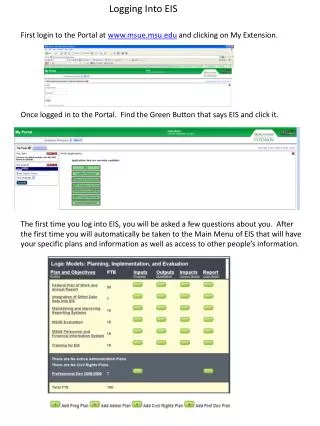
This guide walks you through your first login to the EIS Portal at www.msue.msu.edu. Begin by clicking on "My Extension" after logging in. Once in the portal, locate and click the green button labeled "EIS." On your first visit, you'll be prompted to answer a few questions about yourself. After this initial setup, you'll gain instant access to the Main Menu of EIS, where you can view your specific plans, information, and connect with others.

Accessing the EIS Portal: Your First Login Guide
E N D
Presentation Transcript
Logging Into EIS First login to the Portal at www.msue.msu.edu and clicking on My Extension. Once logged in to the Portal. Find the Green Button that says EIS and click it. The first time you log into EIS, you will be asked a few questions about you. After the first time you will automatically be taken to the Main Menu of EIS that will have your specific plans and information as well as access to other people’s information.