Java Graphics
This article delves into Java's graphical components, specifically focusing on the JFrame class and its role as a container for various graphical entities. We explore the characteristics of components and containers, detailing how components can house children, manage their layout, and define visibility and interactions. Learn about predefined components such as JLabel, JButton, and JTextField, as well as custom components like rectangles and ovals. This comprehensive overview equips you with the knowledge to effectively utilize Java's graphical interface capabilities.

Java Graphics
E N D
Presentation Transcript
Java Graphics Graphical Components as objects
A Component is • A rectangular region of a computer screen • A graphical entity • Can sometimes contains children • Other components that constitute the ‘parent’ component • Can only contain children if the Component is a Container Graphics
Java contains some pre-defined types of components • JFrame • JButton • JLabel • JTextField • JSlider We will also use customized components • Oval • Rectangle • Line • EventButton • EventField • EventSlider Components
All Components have the following traits Components
All Containers are Components that have the following traits Components
A JFrame is a Container • A JFrame is a Window • A JFrame has a ‘title’. JFrame
Invariant • A JFrame object • is a rectangular window. • is placed on a computer screen with its upper-left corner x pixels from the left and y pixels from the top. (The upper left corner of the screen is (0, 0).) • has usable dimension of width pixels from side to side and height pixels from top to bottom; this region has a background color of backColor. • has title displayed in the window's title bar JFrame Class Specification
Constructor public JFrame(String s) post: a new JFrame (window) object is created and s is displayed in the window’s title bar note: this method call needs to be followed by calls to setBounds and setVisible Update Methods public void add(java.awt.Componentpic, int j) pre: j ==0 for best results post: image pic will be drawn upon this JFrame public void remove(java.awt.Componentpic) post: image pic will be removed from this JFrame (assuming it was previously added) public void repaint() post: this JFrame is marked to be redrawn as soon as possible public void setBounds(intnewX, intnewY, int w, int h) pre: w >= 0 and h >= 0 post: x == newX and y == newY and width == w and height == h JFrame Class Specification
Update Methods public void setBackground(Color c) post: backColor == c public void setLayout(LayoutManager m) pre: m == null (for our purposes) post: added objects are rearranged via m public void setLocation(intnewX, intnewY) post: x == newX && y == newY public void setSize(int w, int h) pre: w >= 0 and h >= 0 post: width == w && height == h public void setVisible(boolean b) post: b == true implies this JFrame is made visible and brought to the front JFrame Class Specification
import java.awt.Color; import javax.swing.JFrame; public class Driver { private JFrame blackWin, greenWin; public Driver() { blackWin = new JFrame("Mine"); blackWin.setBounds(10, 10, 100, 200); blackWin.setLayout(null); blackWin.setBackground(Color.black); blackWin.setVisible(true); greenWin = new JFrame("Yours"); greenWin.setBounds(150, 100, 100, 50); greenWin.setLayout(null); greenWin.ssetVisible(true); greenWin.setBackground(Color.green); } } Example (note ‘import’)
A Component can be added to any Container • Containers include Oval, Rectangle, JFrame • Adding a ‘child’ to a ‘parent’ • Positions the child with respect to the parent • A child can either zero or 1 parent • If a child has no parent then it is not ‘seen’ • Children are added in order, so can be hidden or obscured by other children The add method
import java.awt.*; import javax.swing.JFrame; public class Driver { private JFrame win; private Label wiLabel; public Driver() { win = new JFrame("the window"); win.setBounds(10, 10, 200, 200); win.setLayout(null); win.setVisible(true); wiLabel = new JLabel("Wisconsin"); wiLabel.setBounds(10, 40, 120, 20); wiLabel.setForeground(Color.blue); wiLabel.repaint(); win.add(wiLabel, 0); } } Note: must import java.awt.* The JLabel
import java.awt.Color; import javax.swing.JFrame; public class Driver { private JFrame win; private Rectangle box; public Driver() { win = new JFrame("the window"); win.setBounds(10, 10, 200, 200); win.setLayout(null); win.setVisible(true); box = new Rectangle(50, 50, 10, 10); box.setBackground(Color.magenta); box.repaint(); win.add(box, 0); } } Note: no import required for Rectangle, but Rectangle.class file must be in same folder as Driver.class. The Rectangle
import java.awt.Color; import javax.swing.JFrame; public class Driver { private JFrame win; private Oval dot; public Driver() { win = new JFrame("the window"); win.setBounds(10, 10, 200, 200); win.setLayout(null); win.setVisible(true); dot = new Oval(50, 50, 10, 10); dot.setBackground(Color.magenta); dot.repaint(); win.add(dot, 0); } } Note: no import required for Rectangle, but Rectangle.class file must be in same folder as Driver.class. The Oval
Children are ‘ordered’ • Children at the beginning are on top • Children at the end are on the bottom • Two ways of adding • add(Component) – adds at the end • add(Component, int) – adds at the given position • Top layers may obscure lower layers • Children are always ‘clipped’ to their parents Drawing rules for children
Repaint is sometimes needed to make sure that changes to an object are properly displayed • Repaint should usually be used after making some change to a component. Repaint
import java.awt.Color; import javax.swing.JFrame; public class Driver { private JFrame win, bottomWindow; private Rectangle grayRect; private Oval redOval, whiteDot; public Driver() { win = new JFrame("the window"); win.setBounds(10, 10, 200, 100); win.setLayout(null); win.setBackground( Color.lightGray ); win.setVisible(true); grayRect = new Rectangle(40, 40, 40, 50); grayRect.setBackground( Color.darkGray ); win.add(grayRect, 0); whiteDot = new Oval(10, 10, 80, 80); whiteDot.setBackground( Color.white ); grayRect.add(whiteDot, 0); redOval = new Oval(60, -20, 100, 50); redOval.setBackground( Color.red ); win.add(redOval, 0); win.repaint(); } } Example
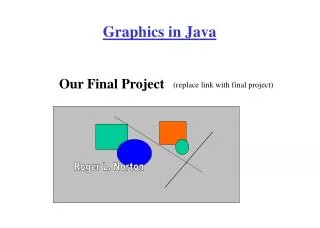
Write a program that draws this picture in the center of a 500 by 500 window. • The “box” is 200 by 200 • The “circle” is 100 by 100 Experiment
Another Supplier Example • When using ‘graphical’ components • The data is called a ‘model’ • The drawing is called a ‘component’ or ‘view’ • No class should have both data and view mixed together! • Consider a BeerMug • Develop a BeerMugModel • Develop a BeerMugComponent
What is the UML Class Diagram for BeerMugModel? BeerMugModel
Only task is to ‘draw’ a BeerMugModel! • Need to know the location (x,y) and dimension (w,h) • Possibly allow clients to choose color schemes (we won’t) BeerMugComponent
Must define ratios • Given the width and the height of the mug, compute the dimensions and locations of everything else W W/4 3*W/4 H/5 H/4 H Component design