1 / 5

Employee Time Sheet Submission Guide at Baton Rouge Community College

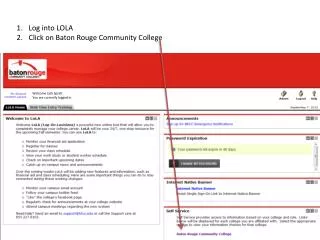
Follow these steps: Log into LOLA, click on Baton Rouge Community College, select Employee, then Time Sheet. Click Enter Hours, input '0', save, and submit for approval.

konala
Télécharger la présentation

Employee Time Sheet Submission Guide at Baton Rouge Community College

An Image/Link below is provided (as is) to download presentation Download Policy: Content on the Website is provided to you AS IS for your information and personal use and may not be sold / licensed / shared on other websites without getting consent from its author. Content is provided to you AS IS for your information and personal use only. Download presentation by click this link. While downloading, if for some reason you are not able to download a presentation, the publisher may have deleted the file from their server. During download, if you can't get a presentation, the file might be deleted by the publisher.

E N D

Presentation Transcript


  1. Log into LOLA • Click on Baton Rouge Community College Welcome Jack Spratt You are currently logged in.

  2. 3. Click on Employee 4. Click on Time Sheet

  3. Select Time Sheet Button • Select Time Sheet 7. To click on enter hours link

  4. 8. Enter Zero “0” 9. Click Save • Click Save • Select – Submit for Approval

  5. John False

More Related