
Cisco IP Phone Voicemail Setup Tutorial
E N D
Presentation Transcript
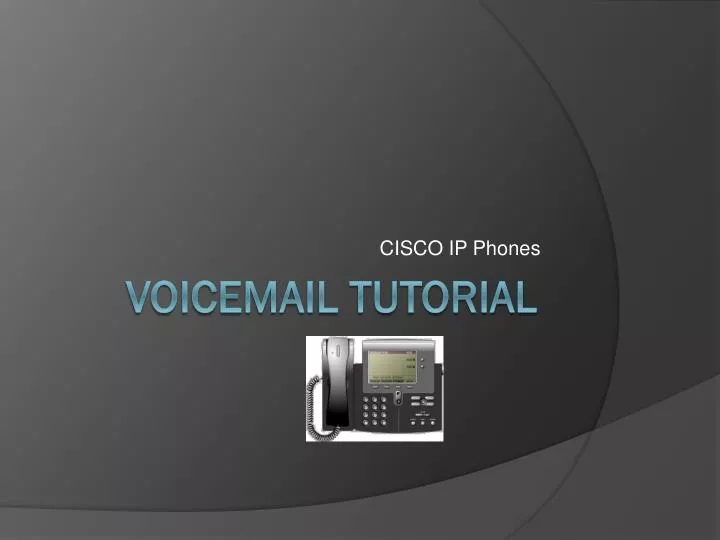
CISCO IP Phones Voicemail tutorial
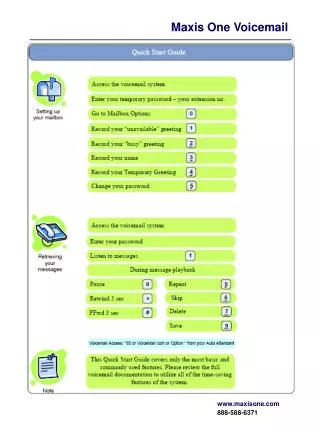
To Initially Set up Voicemail • From an IP phone within the system, dial the last 4 digits of your voice mail number. • For example, if your voice mail number is 770-651-9999, you would enter 9999. • From a regular phone or cell phone dial your entire 10 digit number. • When the message begins, immediately press the * (star) key.
To Initially Set up Voicemail • The system will ask for your ID followed by the #. • Your ID is the last 4 digits of your voicemail number. • The system will then ask for your password. • For the first time only, enter the default password you are given by your office manager. ** You will change this password to something that you can remember during the setup process. Your new password must be between 6 and 19 digits.
To Initially Set up Voicemail • After the voice mail is set up, use your new password. • The system will welcome you to Cisco Unity Messaging Center and will talk you through setting up your voice mail.
Checking Voicemail • Check voicemail following the first four steps you used to set up voicemail. • From an IP phone, dial the last 4 digits of your voicemail number. (From an outside phone or cell phone, dial the full 10 digits) • Press the * (star) key when your message begins. • Enter your ID (last 4) and # (pound) when prompted.
Checking Voicemail • Once you are in the voicemail system, you may listen to and manage your messages. • You may also press 4 to enter the setup menu to change your outgoing message, set up an alternate greeting or change your password.
More information • Click to view a tutorial about using the CISCO 7940 IP Phone. • Click to view a tutorial about using the CISCO 7960 IP Phone.