How to Manage Privacy Permissions in Your My LakeForest Parent Portal
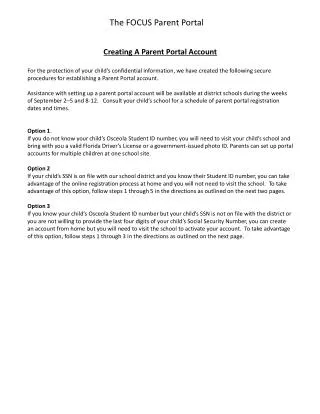
This guide provides step-by-step instructions on how to manage privacy permissions for individuals in your My LakeForest Parent Portal. Log in to the portal and navigate to the 'Student' tab. From there, access 'Privacy Permissions' and choose 'Define New Permissions.' Enter the contact information of the individual you wish to grant permissions to and select which areas they can view. You can manage permissions for multiple individuals and adjust them at any time. Finally, confirm your selections and submit the permissions form.

How to Manage Privacy Permissions in Your My LakeForest Parent Portal
E N D
Presentation Transcript
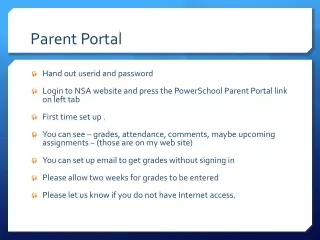
Parent Portal Access How-To Guide
Log into your My.LakeForest portal and select the ‘Student’ tab: On the left side of the screen, select ‘Privacy Permissions’ from the list of options: Select ‘Define New Permissions’
Enter the name and contact information of the person that you want to grant permissions to. You can enter permissions for multiple people with each person having his or her own specific access.
Select the areas that the person can view. The start date is automatically populated with today’s date. Permissions for a specific person can be changed or ended at any time by resubmitting a new form. Confirm the permissions that you have selected and click on “Submit Permissions Form” at the bottom of the screen.