Download
1 / 52
520 likes | 715 Vues
This lecture provides a comprehensive overview of designing web pages using tables. It covers various types of tables, their structures, and how to create and modify both text and graphical tables. Participants will learn to utilize HTML tags such as <TABLE>, <TR>, <TD>, and <TH> for defining table elements, aligning content, and setting sizes. The lecture also discusses best practices for styling, nesting tables for layout control, and tips for optimizing for different screen resolutions. A hands-on exercise will deepen understanding and application.

E N D
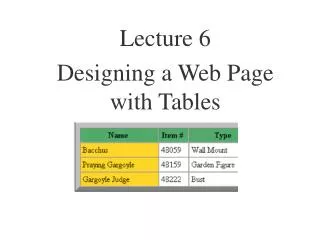
Lecture 6 Designing a Web Page with Tables
Objectives • Types of tables on the web p.4.2-4.3 • Create text table p4.3-4.6 • Create graphical table p4.6-4.12 - Table structure <TABLE> <TR> <TD> - Table header <TH> - Table caption <CAPTION>
Objectives (con’t) • Change graphical table appearance p4.13-4.29 -Table border - Cell border - Cell padding - Table and text alignment - Table and cell size - Background - Spanning rows & columns
Objectives (con’t) • Nested graphical tables to control page layout p4.29-4.43 - an example - principles - tips • Internet Explorer: extensions to tables p4.43-4.46 - Bordercolor - frame • Exercises: Tutorial assign: p.4.3-4.47 Case Problem: #3
Types of tables on the Web • Text table - text only - evenly spaced out in rows and columns • Graphical table - a graphical element on the web page - contains color, shading, borders, etc
Text table Graphical table Example: Text table and graphical table
Create text table Syntax: <PRE> table text </PRE>
Example: Create graphical table <TABLE BORDER> <TR> <TD> First Cell </TD> <TD> Second Cell </TD> </TR> <TR> <TD> Third Cell </TD> <TD> Fourth Cell </TD> </TR> </TABLE> row contains 2 cells Result:
Define table structure • <TABLE> and </TABLE> tags identify the beginning and end of the table. • <TR> and </TR> tags identify the beginning and end of each table row. • <TD> and </TD> tags identify the beginning and end of each table cell. • <TH> and </TH> tags identify text that will act as table headers.
<TH> tag is centered within the cell and displayed in a boldface font Table header (column headings) Table headers (By default, no border is shown.)
Table caption Syntax: <CAPTION ALIGN=value> caption text </CAPTION> where value= TOP or (centered above the table) = BOTTOM (centered below the table) Table caption
Table border Syntax: <TABLE BORDER = size> where size = width of table border in pixels (default = 1 pixel)
Example: Table border BORDER WIDTH=10 PIXELS
Cell spacing Syntax: <TABLE BORDER CELLSPACING = size> where size = width of the interior borders in pixel (default = 2 pixels)
Example: Cell border INTERIOR BORDER=0 PIXELS
Cell padding Syntax: <TABLE BORDER CELLPADDING = size> where size = distance from the table text to the cell border in pixels (default = 1 pixel) SPACE AROUND TEXT=10 PIXELS
Example: Cell padding Cell padding = 4
Table Alignment Syntax: <Table ALIGN = alignment > where alignment = LEFT, CENTER or RIGHT (CENTER ---> no wrapping of text)
Cell text alignment Syntax: <TD ALIGN = alignment1 VALIGN = alignment2> where alignment1 = LEFT, CENTER or RIGHT alignment2 = TOP, MIDDLE or BOTTOM Note: Use ALIGN and VALIGN properties for <TR> tag for the whole row
Graphical table: Table size Syntax: <TABLE WIDTH=size HEIGHT=size> where size = width and height of table in pixels or as a percentage of the display area e.g WIDTH=610 or WIDTH=“95%” Note: Assume monitors display 640*480 pixels Example:
Tips: Choosing table and cell size • Do not specify a table size beyond about 610 pixels (roughly), or else the table will extend beyond the display area of most monitors set at resolutions of 640 x 480. • Specify a cell width (either absolute or relative) for all of your table cells, so that you can be sure that the table will be rendered accurately in the browser. • Test the appearance of your table under several different monitor resolutions, from 640 x 480 on up.
Cell & column size Syntax: <TD WIDTH = size> where size=width in pixels or as a percentage of the table width
Background Color Note:TD, TH overrides TRTR overrides TableTable overrides document background color <TABLE BGCOLOR = color> <TR BGCOLOR = color> <TD BGCOLOR = color> <TH BGCOLOR = color> where color = color name or RBG color value An example:
Example: Codes for changing table color BACKGROUND COLOR OF ROW BACKGROUND COLOR FOR THE TABLE BACKGROUND COLOR OF CELL
Spanning rows & columns A spanning cell is a cell that occupies more than one row or column in a table. <TD ROWSPAN = value> <TD COLSPAN = value> where value = number of rows or columns to be spanned
Example: Spanning rows and columns Cell spans 3 columns Cell spans 3 rows
Example: Spanning rows Rowspan =2
Example: Spanning columns Colspan=2
Nested Graphical tables • Most used to control the page layout - newspaper-style columns - different topical areas • begin with the outer table and work inward • use comments to describe different sections <! Comment text> where comment text does not appear on the web
Example: Outer table 1 ROW*2 COLUMNS
Example: Codes for inserting first column contents • <TR> • <!--List of Hypertext Links--> • <TD WIDTH=165 VILIGN=TOP> • <IMG SRC=“MAA2.gif” WIDTH=144 HEIGHT=25 ALT=“Middle Age Arts”> • <H4><FONT COLOR=YELLOW> Middle Age Arts</FONT></H4> • <FONT COLOR=WHITE> • <A HREF=“Index.htm”>Home Page</A><BR> • <A HREF=“Catalog.htm”>View the catalog</A><BR> • <A HREF=“Orders.htm”> Place an order</A><BR> • </FONT> • <H4><FONT COLOR=YELLOW>About Gargoyles</FONT></H4> • . . . • . . .
Example: Nested table Note: gutter - blank space seperating the material between columns
Example: Text and graphic spanning 3 columns COLSPAN = 3
Example Result:Spanning rows and columns SPANNING 3 COLUMNS SPANNING 2 ROWS
Principles for creating nested tables • Diagram the layout before coding • Create the text for various columns and cells in separate files, then insert later • Create the table structure for the outer table first, then gradually work inward • Insert comment tags to identify different sections • Indent the various of nested tables for clarity • Test and review codes literately, to catch errors early
Tips: Create page layout with tables • Create gutters and use cell padding to keep columns from crowding each other. • Add background colors to columns to provide visual interest and variety. • Use the VALIGN=TOP property in cells containing articles, to ensure that the text flows from the top down. • Use row spanning to vary the size and starting point of articles within columns. Having all articles start and end within the same row creates a static layout that is difficult to read. • Avoid having more than three columns of text, if possible. Inserting additional columns could make the column widths too narrow and make the text hard to read.
Internet Explorer extensions: Tables(Optional) Extentions: additional tags not supported by all browsers • BORDERCOLOR • FRAME • RULES
IE extensions : Table bordercolor <Table BORDERCOLOR=color> Where color=color name or color value
IE extensions: Table bordercolordark & bordercolorlight Syntax: <TABLE BORDERCOLORDARK=color BORDERCOLORLIGHT=color> Bordercolorlight=“#0099cc” Bordercolordark=“#333366” Note: Netscape extension also supports table border color, and bordercolorlight and bordercolordark is built-in.
IE extensions: FRAME • Control which sides of the table have borders • Syntax: <TABLE FRAME=value>