Creating an Animoto Video
130 likes | 270 Vues
Learn how to convert your PowerPoint presentation into a captivating video using Animoto. Follow our simple guidelines: use large fonts for clarity, emphasize key points with color, and keep slides concise with two points or less. Save your PowerPoint slides as JPEG images and create your video by uploading them to Animoto. Don't forget to select an appropriate soundtrack from their library or upload your own. Finalize by giving your video a title and description before hitting "Create Video." Elevate your presentation and engage your audience effortlessly!


Creating an Animoto Video
E N D
Presentation Transcript
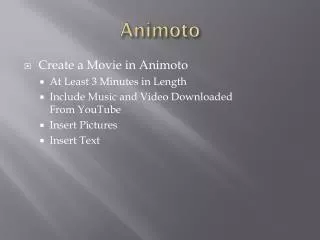
Create a PowerPoint on your topic • Be sure to: • Use large font • Draw attention to main points • Use differentcolors • Limit amount of text per slide • 2 or less points per slide • There is no limit on # of slides
Next step… Saving Your File
Scroll down and save as type: “JPEG File Interchange Format”
Every slide will be stored as an image on your computer or network drive.
Sign in or sign up at Animoto.com Teachers should sign up through animoto for education
After signing in or creating an account, click “create video”
Choose full-length video because it gives you more control!!
After uploading your slides, choose the music for your show. You may upload music or use their library.
Finalize by titling your video, adding a description and click “Create Video”