Practice Session 1
In this PowerPoint practice session, learn how to effectively hyperlink slides, including connecting key slide views with the appropriate corresponding slides. Discover the function of the Back button in enhancing navigation between slides while mastering the integration of three essential slide views: Normal View, Slide Sorter View, and Slide Show View. This hands-on exercise will enhance your editing skills, allowing you to present with confidence. Complete the task by saving your work in the specified format.

Practice Session 1
E N D
Presentation Transcript
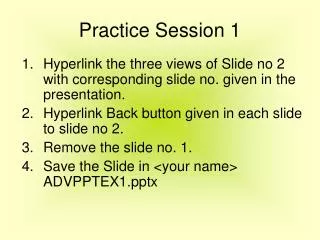
Practice Session 1 • Hyperlink the three views of Slide no 2 with corresponding slide no. given in the presentation. • Hyperlink Back button given in each slide to slide no 2. • Remove the slide no. 1. • Save the Slide in <your name> ADVPPTEX1.pptx
POWERPOINT SLIDE VIEWS Microsoft PowerPoint is one of the most popular presentation software. PowerPoint slide views are used while creating and editing a presentation. There are three slide view buttons located in the lower left corner of the presentation window which are: • Normal View • Slide Sorter View • Slide Show View
Normal View Microsoft PowerPoint is one of the most popular presentation software. PowerPoint slide views are used while creating and editing a presentation. There are three slide view buttons located in the lower left corner of the presentation window which are:
Slide Sorter View This view displays all the slides in a presentation as thumbnails in the slide pane. This view is usually used for organizing a presentation by rearranging, copying or deleting slides.
Slide Show View This view displays the slide on full screen. This view is used to see the slides on full monitor screen with various animation and transition effects applied, as they would appear during an actual presentation