Enhance Your Research with the Rutgers University Libraries Toolbar
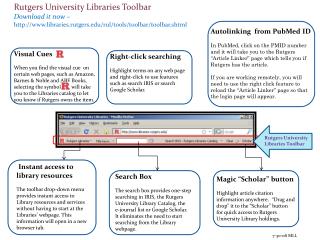
Discover the powerful Rutgers University Libraries Toolbar, designed for seamless access to library resources. Use Autolinking from PubMed with a simple click on the PMID number to check article availability through the "Article Linker." Visual cues on sites like Amazon guide you to the Libraries catalog. Right-click search functionality simplifies querying through IRIS or Google Scholar. The intuitive search box enables efficient searching without navigating the library's homepage. The "Scholar" button ensures quick access to citations and holdings at your fingertips.

Enhance Your Research with the Rutgers University Libraries Toolbar
E N D
Presentation Transcript
Rutgers University Libraries Toolbar Download it now – http://www.libraries.rutgers.edu/rul/tools/toolbar/toolbar.shtml Autolinking from PubMed ID In PubMed, click on the PMID number and it will take you to the Rutgers “Article Linker” page which tells you if Rutgers has the article. If you are working remotely, you will need to use the right click feature to reload the “Article Linker” page so that the login page will appear. Visual Cues When you find the visual cue on certain web pages, such as Amazon, Barnes & Noble and ABE Books, selecting the symbol will take you to the Libraries catalog to let you know if Rutgers owns the item. Right-click searching Highlight terms on any web page and right-click to use features such as search IRIS or search Google Scholar. Rutgers University Libraries Toolbar Instant access to library resources The toolbar drop-down menu provides instant access to Library resources and services without having to start at the Libraries’ webpage. This information will open in a new browser tab. Search Box The search box provides one-step searching in IRIS, the Rutgers University Library Catalog, the e-journal list or Google Scholar. It eliminates the need to start searching from the Library webpage. Magic “Scholar” button Highlight article citation information anywhere. “Drag and drop” it to the “Scholar” button for quick access to Rutgers University Library holdings. 7-30-08 MLL