Mastering Access Queries: Essential Techniques for Data Management and Analysis
This guide provides a comprehensive overview of utilizing Microsoft Access queries for effective data management in business. Learn the purpose of queries, key table properties, and methods to create, sort, and filter records using various criteria. Explore ad-hoc information retrieval, understand the difference between record and summary calculations, and discover how to leverage Access objects—including tables, reports, and forms—to enhance decision-making. Ideal for beginners and intermediate users seeking to improve their database skills.


Mastering Access Queries: Essential Techniques for Data Management and Analysis
E N D
Presentation Transcript
Access: Queries Chapters A1-A3 All Sections
Today’s Topic Security Hardware & Software IS Basics Information Quality Types of IS Telecommu-nications Systems Development PowerPoint Functional, Crossfunctional & Interorganizational Database Processing & Design Spreadsheet Design E-commerce Access Excel Business Intelligence
Access Queries Access Properties Queries Sorting Calculations Selection Criteria
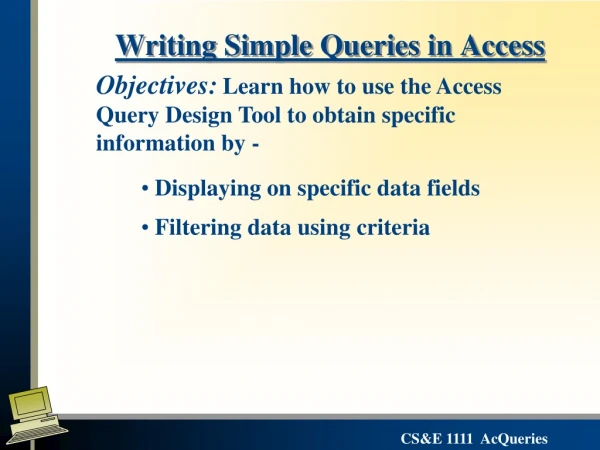
Objective • State the purpose of common table properties. • Create queries to support common business problems. (Using Query Design View only) • Distinguish between record and summary calculations.
What are Access Objects? • Tables • Queries • Reports • Forms
What Table Properties Can I Set? • Field Name • Data Type • Field Size • Format (output) • Decimal Places • Input Mask • Default Value • Validation Rule • Required • Indexed
What is the Purpose of Queries? • Ad-hoc information retrieval • Output subsets of data
Example Data Participant Registration Card Participant ID: 1 Age: Gender: Male Female Are you married? Y or N Are you a parent? Y or N Are you a home owner? Y or N What is your favorite food?
Example Data Observation Card Participant ID #: Observation Date: 1 = Poor … 5 = Excellent Rating of Product A: 1 2 3 4 5 Rating of Product B: 1 2 3 4 5 Rating of Product C: 1 2 3 4 5 Rating of Product D: 1 2 3 4 5
Open Existing Database Start Access
Start a Query Example: List demographics of all participants.
Show & Hide Fields Example: List demographics of all participants but hide homeowner field.
Sort Records Example: List ratings for Product A from high to low.
Select Records Example: List demographics of Female participants.
Query More Than One Table Example: List all observation ratings by female participants.
Selection Criteria: Operators Example: List demographics of all participants over 30 years of age.
Selection Criteria: NOT Example: List demographics of all participants who are not female.
Selection Criteria: * and ? Example: List demographics of all participants who like liver. Liver may be anywhere in the Favorite Food string; beginning, middle or end.
Selection Criteria: NULL Example: List demographics of all participants who did not identify a favorite food.
Selection Criteria: AND Example: List demographics of female participants who are over thirty.
Selection Criteria: OR Example: List demographics of participants who are either Female or over 30.
Combine Selection Criteria Example: List all female participants who are married and all male participants who are parents.
Selection Criteria: Dates Example: List all observations recorded on Feb 24, 2011.
Summary Calculations One calculation total for a group of records. Example: Calculate the average rating each participant assigned to Product A.
Record Calculations One calculation per record. Example: Determine the age of each participant in five years.
Query Limitations • Queries can show only one level of grouping at a time. • Queries have limited formatting options.