CIS 338: Using ADO (ActiveX Data Objects)
Learn about ADO (ActiveX Data Objects) and its role in accessing universal data. Explore concepts such as OLEDB, ADO.NET, DataSet, and XML data transfer.

CIS 338: Using ADO (ActiveX Data Objects)
E N D
Presentation Transcript
CIS 338: Using ADO (ActiveX Data Objects) [largely replaced by adonet.vb] Dr. Ralph D. Westfall April, 2003
Universal Data Access • ADO.NET is part of Microsoft's universal data access strategy • Universal Data Access FAQs • ODBC: open database connectivity • API standard for using relational databases • API = application programming interface • includes "drivers" for Access, dBase, DB2, Excel, text, etc. • Microsoft is leading ODBC backer
Universal Data Access - 2 • OLEDB: DB object linking & embedding • next step beyond ODBC • accesses relational databases with ODBC • provides access to other data also • e-mail, video, voice, images, web pages, etc., etc. • data is accessed "in place" (no need to first move it into a database)
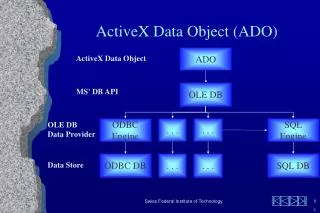
OLEDB Concepts • data store = "persistent" collection of data • data provider = gets data from data store • OLEDB "driver": database, email data, etc. • OLEDB "has nothing to do with Object Linking and Embedding" (Word, Excel) • data consumer = application that uses data • ADO (ActiveX Data Object) interfaces to data store through OLEDB
ADO.NET • replaceS DAO, RDO and previous ADO • can use ADO.NET with VB in code via object interface • more powerful than DAO and previous ADO • numerous objects with useful properties and methods
OLEDB with ADO.NET • dataset object • copy of data in memory, rather than connected to the database • can have 1 to many DataTable objects • ADO.NET OLEDB data providers • SQLClient driver for SQL Server (Microsoft) • OleDBClient driver for other databases
DataSet Object Data Tables • "collections" of table(s) information • rows, columns of table • relationships with other tables • constraints to manage additions/deletions from tables that are related to other tables • data "views" that allow data to be seen in different ways than it is stored in table(s)
Data Provider Objects • connection (to file or server) • command object runs SQL or stored procedures in the database • data reader (if need high performance) • read only, forward only • data adaptor (more capabilities) • add, change, delete, relate tables
ADO.NET: XML Data Transfer • industry standard for transferring data • like HTML, but can create other tags • HTML: <title>[some text]</title> • XML: <price>[value for price]</price> • like HTML, can have tags within others • HTML: <html><body></body></html> • XML: <name><first></first></name>
XML Schema • separate file that describes data in an XML file • type of data: numeric, text, etc. • occurrences: 0 or 1, or either to many • relationships e.g., name includes 1st and last names • other characteristics e.g., primary key
Exercise • create your own tags for something you are familiar with • food, pets, motor vehicles, video games, ways to communicate, college courses, etc. • make sure that tags are "nested" • open and close inside other "boxes" • then fill in with some sample data
Database System Options • SQL Server • high performance • not well-suited for using on one computer • Microsoft Data Engine (MSDE) • chopped down version of SQL Server • can work with SQL Server files • but also can work with Microsoft Access
Creating an MSDE Database • note: may have problems on network • start Access • File>New, New>Project (New Data) • Access creates a MSDE database (.adp) • data storage is different, but you can work with it like an Access database (.mdb) • can edit data or upload files as with .mdb
Connecting ADO to Access • start a new .NET Windows application • View>Server Explorer • right click Data Connections>Add Connection • click Provider tab>Microsoft Jet 4.0 OLE DB Provider>Next button • browse … for Access database>OK
Using Data Connection • viewing data in a table • in Server Explorer, expand Data Connections, Access, Tables icons • right click on a Table>Retrieve Data from Table • close this preview window
Create a DataAdapter • in Server Explorer, click and drag a Table onto the form • note 2 new components in tray below • right click DataAdaptor>Generate Dataset
DataGrid with DataAdapter • add a DataGrid • set DataSource property to DataSet • in Form_Load, use .Fill method of DataAdapter with DataSet as argument • Click Start to view DataGrid
List/ComboBox with DataSet • drag/drop ListBox onto form • set DataSource to DataSet (drop down) • set DisplayMember to a field in table • add .Fill method of DataAdapter • see previous slide if didn't do this already • note that data is in same order as in database (not sorted)
DataView List/ComboBox • DataView makes it possible to sort and do other things with database data • drag/drop DataView object to form/tray • set DataView Table property to a table from the DataSet (drop down) • type in a field name for Sort property • see field names in Server Explorer
DataView List/ComboBox - 2 • drag/drop ComboBox onto form • set DataSource to DataSet (drop down) • set DisplayMember to a field in table • add .Fill method of DataAdapter • see previous slide if didn't do this already • can set .ListIndex property to -1 so that no item is selected at start (ListBox too)
SQL as Source of Data • expand DataAdaptor Select Command property to see CommandText code • can modify this SQL by changing the line, or by clicking … to see Query Builder • can (un)select fields in Output column • can add a WHERE condition value • ? in the Criteria column(s) prompts user
Binding Other Controls to Data • draw TextBox or Label on form • expand (DataBindings) property • click Text, and select table/field from drop down • add code to load DataSet with just the item input or selected in another control
Setting Up ADO with a DSN • Windows (not VB): Start>Settings>Control Panel[>Administrative Tools>Data Sources] • click Data Sources (32 bit) [User DSN tab] • select MS Access Database, click Add • select Microsoft Access Driver, click Finish • click select, choose database (e.g., BIBLIO) • type in Data Source Name (DSN) and description, then click OK • put in what you want to call DSN, your description
Using ADO Data Control • right click toolbox, select Components • click Microsoft ADO Data Control 6.0, OK • click Adodc control on toolbar, draw on form • right click on control to see Properties page • first set up Source of Connection (General tab) • select Use ODBC Data Source Name and select the DSN you just created (or Use Connection String>Build etc. with latest Microsoft Jet [=Access] Provider)
Using ADO Data Control - 2 • select RecordSource tab • select 1 of following Command Types: • adCmdText – need to type in SQL query • adCmdTable – need to select the table name • adCmdStoredProcedure – need to select the procedure name • enter SQL, or select Table or stored procedure (e.g., Publishers), click OK
Using ADO Data Control - 3 • add controls (e.g., 2 textboxes) to form • bind controls to data fields (like with DAO; e.g., Name, City) • set DataSource properties = name of data control from dropdown list • set DataField properties to field names from dropdown list • run project, scroll with ADO data control
Using Code & ADODC Control 'command button event code (need a 3rd 'textbox to run this) Dim sState as String, sSQL as String sState = Text3.Text '3rd TextBox sSQL = "select * from Publishers" If sState <> "" Then sSQL = sSQL & _ " WHERE State = '" & sState & "'" 'space Adodc1.CommandType = adCmdText Adodc1.RecordSource = sSQL Adodc1.Refresh
Data Grid Control • displays database data on a form like in a spreadsheet • can use this layout to edit data in the database
Using DataGrid Control • right click toolbox, select Components • click Microsoft ADO Data Control 6.0 • click Microsoft Data Grid Control 6.0, OK • click Adodc control on toolbar, draw on form • right click on Adodc control to see Properties • 1st set Source of Connection (General tab) • select Use ODBC Data Source Name and select DSN (BIBLIO), or use connect string • select RecordSource tab • select Command Type (adCmdTable), select Table name (Publishers)
Using DataGrid Control - 2 • click toolbar's DataGrid, draw on form • using regular Properties window, set DataSource to connection being used • then right click on DataGrid, select Retrieve fields
Using DataGrid Control - 3 • DataGrid properties • use regular Properties window to set some properties • e.g., Caption • right click on grid for Properties Pages for others • General tab • ColumnHeaders – on or off • Enabled – allows user to scroll, select, modify • AllowAddNew, AllowDelete, or AllowUpdate – user can add, delete, or change database contents
Using DataGrid Control - 4 • Properties Pages (continued) • Keyboard tab • allow use of arrow keys • set TabAction tab key behavior (reference) • other tabs • Color, Font, Format (number, date/time, + etc. like in Excel)
Editing a DataGrid • right click grid, select Edit, right click again • use commands to change grid • cut, paste, delete, etc. • can split a grid to get a new user window • use Property Pages Layout tab to uncheck Visible for individual columns in different splits
Using ActiveX Data Objects • Project>References> and then check: • Microsoft ActiveX Data Objects 2.x Library • e.g., x = 2.7 if you have it • provides ADOR (recordset) objects • Recordset, Field and Property objects • provides ADODB objects • above objects plus Connection, Command, Parameter and Error objects
Set Up a Data Source in Code • can use a connection object to access a database with a DSN Dim cn As ADODB.Connection Set cn = New ADODB.Connection cn.ConnectionString="DSN=[name]" cn.Open
Setting Up a Data Source - 2 • connecting without a DSN (p. 629) Dim cn As ADODB.Connection '(General) Set cn = New ADODB.Connection cn.ConnectionString = _ "Driver=Microsoft Access Driver (*.mdb);DBQ=C:\[path]\[file].MDB;" 'need just one space before (*.mdb) 'NO spaces!! in Driver=Microsoft... cn.Open
Using Recordsets in Code Dim cn As ADODB.Connection Dim rs[name] As ADODB.Recordset 'add to (General Declarations) Set cn = New ADODB.Connection cn.ConnectionString = _ "Driver=Microsoft Access Driver (*.mdb);DBQ=C:\[path]\[file].MDB;" cn.Open
Using Recordsets in Code - 2 Const sSQL = "SELECT * FROM [table]" Set rs[name] = New ADODB.Recordset rs[name].ActiveConnection = cn rs[name].Source = sSQL rs[name].Open rs[name].MoveFirst Print "[ ]= " & _ rs[name].Fields("[field]")
Multiple Ways to Use Objects Set rs[name] = New ADODB.Recordset rs[name].ActiveConnection = cn rs[name].Source = sSQL rs[name].Open • OR Set rs[name] = cn.Execute(sSQL)
Recordset Lock Types rs[name].LockType = … • adLockReadOnly – can't add, change, or delete • adLockPessimistic – record locked while working on it • adLockOptimistic – record locked when submitted to database (but rejected if another user already has a lock on it) • adLockBatchOptimistic – multiple records submitted, locked individually while being updated
Recordset Cursor Types rs[name].CursorType = … • adOpenForwardOnly – fast, but one-way • adOpenKeySet – user can see changes by other users, but not new records or deletions • adOpenDynamic – slowest, but user can see all modifications by other users • adOpenStatic – can't see any modifications
Updating Databases with Recordsets in ADO Set rs[name] = New ADODB.Recordset rs[name].CursorType = [ ] rs[name].LockType = [ ] rs[name].Source = [table, SQL] rs[name].ActiveConnection = cn rs[name].Open
Updating Databases with Recordsets in ADO - 2 'changing field values rs[name].Fields("[field]") = [ ] rs[name].Update '1 command 'need 2 commands to change in DAO 'adding new records (2 commands) rs[name].AddNew '1st command rs[name].Fields("[field]") = [ ] rs[name].Update '2nd command
Disposing of Objects • to conserve resources, get rid of objects when finished with them rs[name].Close 'disconnects from database Set rs[name] = Nothing 'removes from memory cn.Close Set cn = Nothing
Data Source Name (DSN) • DSNs allow you to set up "virtual addresses" on a computer • DSN "points to" the actual physical path • can change physical path for a DSN (e.g., when move application to another computer) but use same DSN in code • DSNs can make applications more portable • but DO NOT use DSNs in your projects for CIS 338 (they are not on my computer!)