Introduction to Java Servlets and Setting Up Apache Tomcat for Web Applications
180 likes | 300 Vues
This lecture covers the fundamentals of Java Servlets and their role in web-based enterprise applications. It outlines how servlets extend server functionality by dynamically generating HTML pages and handling user requests. Key advantages include the ability to connect to databases, maintain state between requests, and robust security. The session also walks through the software requirements and configuration steps for installing Apache Tomcat, the reference implementation for Servlet and JSP technologies, ensuring a smooth setup for web development.


Introduction to Java Servlets and Setting Up Apache Tomcat for Web Applications
E N D
Presentation Transcript
Intro to Servlets Lec 26
Web-Based Enterprise Applications in Java Figure shows a simplified view of one application and its layers.
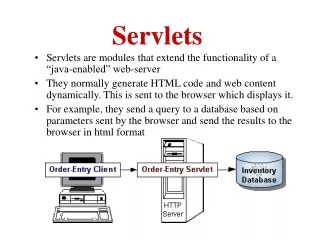
Java Servlets JVM Request Client/ browser Server Servlet Response Extends the functionality of the server by Generating HTML pages dynamically
What Do They Do? • Anything that java can do (e.g. connect to database services) • Handle data/requests sent by users (clients) • Create and format results • Send results back to user
Java Servlets • Advantages over other SSP technologies: • Can use the Java APIs e.g. JDBC. • Persistent between invocations, avoiding process instantiations. • Portable across operating systems and servers. • Good security. • Is integrated closely with the J2EE environment.
Software Requirements • To use Java servlets, following softwares will be needed • J2SE • Additional J2EE based libraries for servlets such as servlet-api.jar, jsp-api.jar. You can download these APIs separately but they are also available with the web server you’ll be using. • A capable servlet web engine (web server)
Jakarta Servlet Engine (Tomcat) • Jakarta is an Apache project • Tomcat is one of its subprojects • Tomcat is the official reference implementation for the Java servlet and JavaServer pages technologies (according to Sun’s specifications) • Tomcat is developed in an open and participatory environment and released under the Apache software license
Environment Setup Steps • Download the Apache Tomcat Server • Install Tomcat • Set the JAVA_HOME variable • Set the CATALINA_HOME variable • Set the CLASSPATH variable • Test the Server
Download the Apache Tomcat Server • From the http://jakarta.apache.org • Download the zip file for the current release of Jakarta Tomcat • For windows, there is also a .exe installer
Install Tomcat • Installing .zip file • Unzip the file into a location (e.g. C:\) • The zip file had embedded subdirectories(e.g.,jakarta-tomcat-5.5.9). • C:\ jakarta-tomcat-5.5.9generally referred as install_dir • Installing .exe file • Check the handouts
Set the JAVA_HOME variable • Set the JAVA_HOME environment variable to tell Tomcat where to find Java • This variable should list the base JDK installation directory, not the bin subdirectory JAVA_HOME = c:\j2sdk1.5.0
Set the CATALINA_HOME variable • Set the CATALINA_HOME environment variable to refer to the top-level directory of the Apache Tomcat installation, not the bin subdirectory CATALINA_HOME = c:\jakarta-tomcat-5.5.9
Set the CLASSPATH variable • Since servlets and JSP are not part of the J2SE, javac doesn’t know about the servlet and jsp classes • The standard Tomcat locations for these files are • install_dir/common/lib/servlet-api.jar • install_dir/common/lib/jsp-api.jar • You need to include both files in your CLASSPATH
Test the Server • Before making your own Servlets and JSP, verify that the server can start • Runinstall_dir/bin/startup.bat • Enter the URL http://localhost:8080 in your browser and make sure you will get the Tomcat homepage
Tomcat Directory Structure my-app