SlideServe Logo
  • Browse
    • Recent Presentations
    • Recent Articles
    • Content Topics
    • Updated Contents
    • Featured Contents

    • PowerPoint Templates
    • Presentation
    • Article
    • Survey
    • Quiz
    • Lead-form
    • E-Book
  • Pro
  • Upload

Wildcard search - PowerPoint PPT Presentation

Find and Replace Text

Find and Replace Text

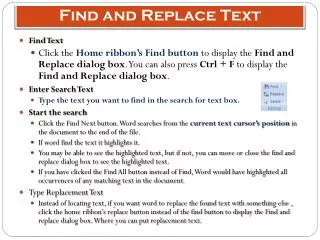
Find and Replace Text. Find Text Click the Home ribbon’s Find button to display the Find and Replace dialog box . You can also press Ctrl + F to display the Find and Replace dialog box . Enter Search Text Type the text you want to find in the search for text box. Start the search

★ ★ ★ ★ ★

574 views • 37 slides


Using E-Class

Using E-Class

Using E-Class. Searching for position titles containing a key word or phrase. This is a PowerPoint presentation of about five minutes duration. It will explain how to find job titles containing a particular word or phrase. You may exit the presentation at any time simply by closing the Window.

★ ★ ★ ★ ★

150 views • 12 slides


BASIC UNIT 2 ROSS USER BASICS

BASIC UNIT 2 ROSS USER BASICS

BASIC UNIT 2 ROSS USER BASICS. UNIT 2 OBJECTIVES. Be able to: Switch to another user. Refresh a ROSS session. Log off of ROSS. Exit ROSS. Identify layout & components of ROSS Home screen.              8. Access ROSS Help. 9. Refresh a screen. 10. Switch between open screens.

★ ★ ★ ★ ★

214 views • 7 slides


View Wildcard search PowerPoint (PPT) presentations online in SlideServe. SlideServe has a very huge collection of Wildcard search PowerPoint presentations. You can view or download Wildcard search presentations for your school assignment or business presentation. Browse for the presentations on every topic that you want.

  • English
  • Français
  • About
  • Privacy
  • DMCA
  • Blog
  • Contact
© 2026 SlideServe. All rights reserved.