Have you ever noticed your Wi-Fi working perfectly one moment, then suddenly slowing down the next? Maybe your video call freezes at the worst time, or your favorite show buffers right when the plot gets interesting.
If you’re dealing with these annoying internet issues, here’s the surprising truth: a proper reset of your router and modem can fix most of them instantly.
But there’s a catch. Most people don’t reset their devices correctly. They might press the wrong button, skip the timing, or reset the devices in the wrong order. The result? The same internet problems repeatedly arise.
This guide will show you how to reset a router and how to reset a modem like a pro efficiently and safely.
Why Your Router & Modem Need a Reset More Than You Think
Like your phone or computer, your internet devices can get overloaded. They run 24/7, warming up, collecting temporary data, juggling multiple devices, and handling endless requests.
That leads to:
- slower speeds
- network glitches
- Wi-Fi drops
- device connection failures
- weak signals
Resetting works because it clears temporary memory issues, reduces network congestion, and re-establishes a clean connection with your ISP. If you’ve been dealing with slow Wi-Fi, the reset method below will likely fix it.
Before You Start: Router vs. Modem
Router: Creates your Wi-Fi network and distributes internet to your devices.
Modem: Your modem brings the internet into your home from your provider. They work together. So, if you're only resetting one, you're only solving part of the problem. To see real improvement, you need to reset both properly and in the right order.
How to Reset a Router
Let’s be clear: resetting your router doesn’t mean pressing the tiny reset hole; that’s a factory reset and should be avoided unless necessary. Here’s the proper, safe way:
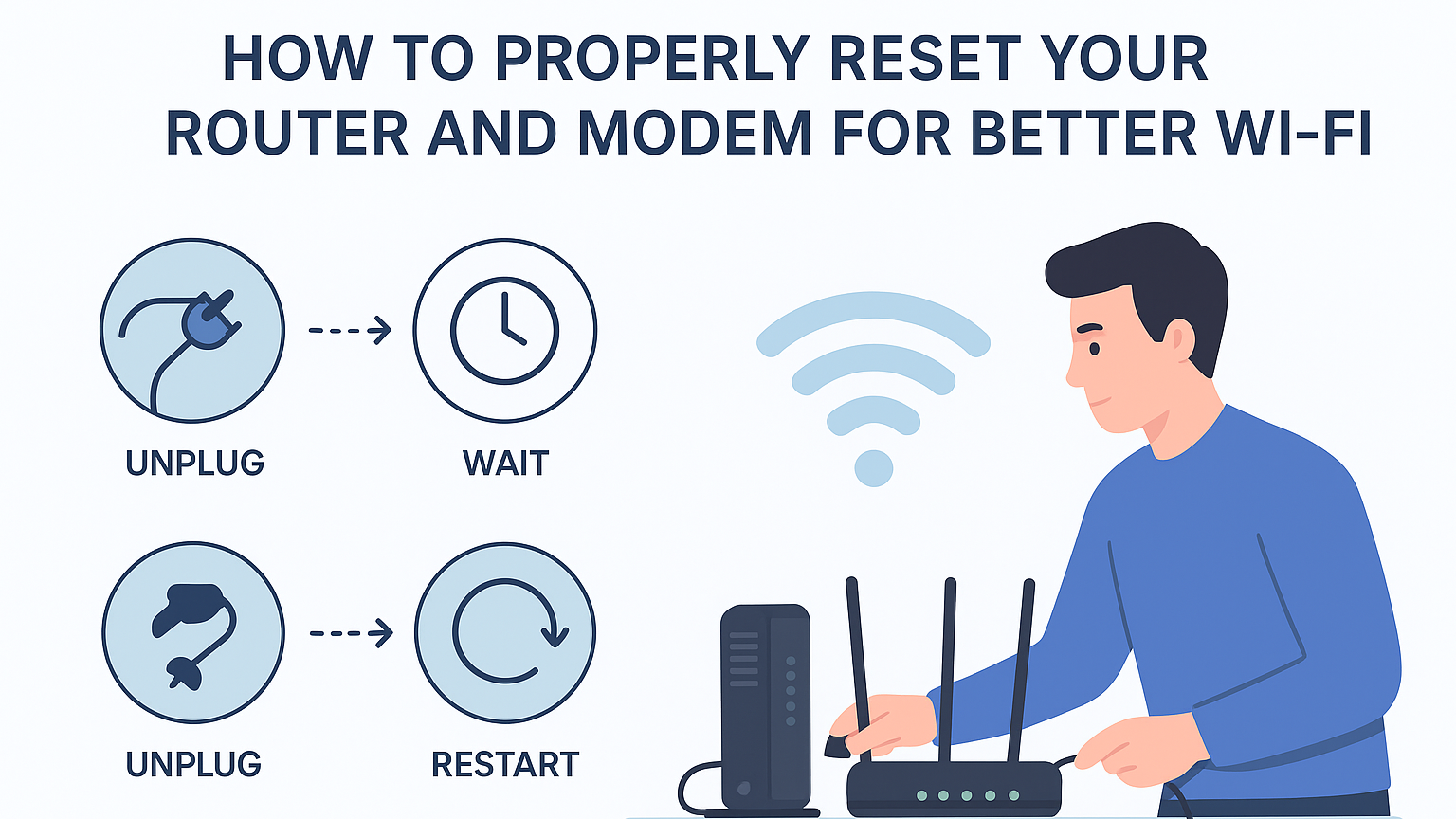
Step 1: Unplug your router’s power cable
Don’t push any buttons. Just unplug it from the power outlet.
Step 2: Wait 30 seconds
First, unplug the power cord from your router. Wait for at least 30 seconds. This short pause lets your router fully drain leftover electricity and clear its temporary memory. Skipping this step reduces the effectiveness of the reset.
Step 3: Plug it back in
Once powered back on, give your router 1 to 2 minutes to reconnect and stabilize. That’s all it takes to reset a router the right way.
How to Reset a Modem
Resetting a modem is slightly different because it communicates directly with your ISP’s network. Timing matters here.
Step 1: Unplug the modem from the power source
First, pull out the power cord. If your modem has a backup battery, remove that too.
Step 2: Wait at least 1 full minute
Modems need more time than routers because clearing signal paths, internet protocol (IP) data, and cached information takes longer. Waiting one minute ensures a clean handshake with your ISP when it reconnects.
Step 3: Plug the modem back in
Let all lights stabilize. This can take anywhere from 2 to 5 minutes. Once it's online, you’re ready for the final step reconnecting your router.
The Correct Reset Order (This Changes Everything)
If you want the best possible results, follow this sequence without skipping:
- Power off and unplug the modem
- Power off and unplug the router
- Wait 60 seconds
- Turn the modem back on first
- Wait until all modem lights stop blinking
- Turn the router back on second
- Wait 1–2 minutes for the network to rebuild
This specific order ensures the router receives a clean, refreshed signal from the modem no conflicts, no errors.
When Should You Reset Your Internet Devices?
Resetting isn’t just for emergencies. Do it whenever you notice slow speeds or connection issues.
- slow speeds throughout the day
- constant buffering
- freezing video calls
- Wi-Fi disconnecting randomly
- “connected but no internet” messages
- multiple devices struggling to stay online
Even if things seem fine, doing a reset every week or two keeps the network running smoothly.
Signs a Reset Won’t Fix the Issue
If your connection still misbehaves after a proper reset, the issue may be deeper:
- outdated router or modem
- weak ISP plan
- signal interference
- physical damage to cables
- router placed too far or too low
- area-wide provider outage
A reset is step one but not always the full solution.
Pro Tips to Make Your Reset More Effective
Place your router higher for better coverage. Keep it away from microwaves, TVs, and thick walls. Update the router's firmware regularly. Use dual-band (2.4 GHz and 5 GHz) wisely. Restart devices like laptops or smartphones after a reset. Each small improvement helps create a stronger, cleaner Wi-Fi experience.
Conclusion
Now you know how to reset a router and modem like a true pro. A proper reset done with the right timing and in the correct order is one of the simplest ways to fix slow or unstable internet.
It only takes a few minutes, but the results can feel like a complete upgrade to your connection. If your Wi-Fi starts slowing down or acting up, follow this guide to give your network a fresh start. Your devices and your sanity will appreciate it.
FAQs About Reset a Router & Modem
1. Does resetting my router delete my Wi-Fi name or password?
No, unplugging your router is safe. Only pressing the small reset button wipes your settings.
2. How often should I reset my router and modem?
Resetting every 1 to 2 weeks helps maintain smooth performance, especially with many connected devices.
3. Why does resetting fix slow internet?
It clears cached data, removes signal conflicts, solves IP mismatches, and refreshes your connection to the ISP.
4. Should I reset the modem or router first?
Always turn them off together, but when turning them on, start with the modem and then the router.
5. My internet is still slow after resetting. What now?
Check your cables, update firmware, test your speed, or contact your ISP. There may be an outage or an issue with your plan.