You’re halfway through a movie marathon or right in the middle of an important virtual meeting when suddenly, everything freezes. The screen glitches, your call drops, and that dreaded popup appears: “No Internet Connection.” It’s frustrating and stressful. Let’s be honest, we’ve all been there.
In a world where we rely on the internet for work, entertainment, and home devices, a sudden network outage can feel like hitting a wall. But why do these outages happen, and what can you do to reduce how often they occur?
Let’s break it down clearly so you understand what causes network outages, how to fix them, and how to make your connection more reliable.
What Is a Network Outage?
Before we dive into the causes, let’s start with the basics: What Is a Network Outage?
A network outage happens when you temporarily lose access to the internet or a specific service. This can affect just one device, your entire home, or thousands of users if the issue originates with your Internet Service Provider (ISP).
Outages might last a few minutes or extend longer depending on their cause. While some are beyond your control, like ISP maintenance or local power cuts, many can be prevented with a few smart habits.
Common Causes of Network Outages
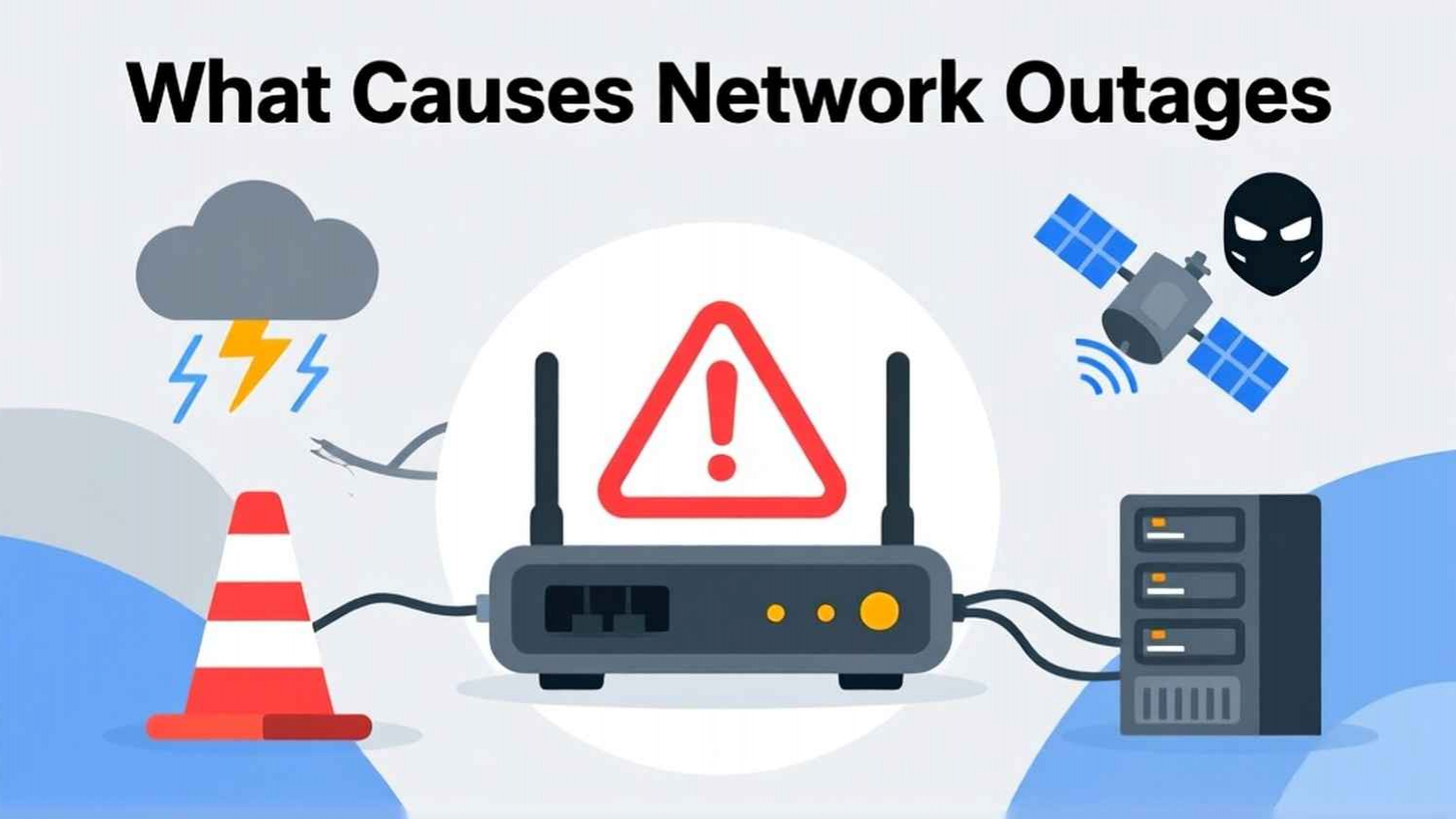
Network outages can happen for various reasons: technical problems, weather, or simple human errors. Here are the most common causes and how to deal with them.
1. ISP-Related Issues
Sometimes, everything at home is working perfectly, but your internet provider is having issues. ISPs perform routine maintenance, upgrade servers, or fix unexpected failures, which can temporarily disrupt your connection.
Signs: All your devices lose internet simultaneously, and router lights appear normal.
Fix:
- Check your ISP’s website or social media for outage alerts.
- You can also use sites like Downdetector to see if others are reporting issues.
- In these cases, the only real fix is patience and waiting until service is restored.
2. Hardware Malfunction
Your modem and router are the backbone of your home internet. Like any electronic device, they can overheat, wear out, or malfunction over time.
Signs: Random disconnections, weak Wi-Fi signal, or blinking router lights.
Fix:
- Restart your modem and router by unplugging them for 30 seconds.
- Check cables for damage or loose connections.
- If your router is more than 3–5 years old, consider upgrading it to make a world of difference in speed and reliability.
3. Power Interruptions
A sudden power surge or outage can instantly take your internet offline. Even after power returns, your router may need a manual restart.
Fix:
Use an Uninterruptible Power Supply (UPS) or surge protector to prevent power-related damage. If your area experiences frequent blackouts, investing in backup power equipment helps prevent recurring outages.
4. Bad Weather Conditions
Storms, heavy rain, snow, lightning, and strong winds can disrupt both wired and wireless connections. Outdoor equipment or fiber lines can get damaged during extreme weather.
Fix:
- For satellite users, clear debris or snow off your dish once the weather calms.
- If you use outdoor equipment (like fixed wireless antennas), make sure they’re securely mounted and weatherproofed.
5. Network Congestion
If your internet slows down or disconnects in the evenings, you’re probably experiencing network congestion too many people online at once.
Fix:
- Limit large downloads or HD streaming during busy times.
- Use routers with Quality of Service (QoS) settings to prioritize essential tasks (like video calls).
- If it happens frequently, talk to your ISP about upgrading your plan.
6. DNS Server Errors
The Domain Name System (DNS) acts like the internet’s phonebook, converting web addresses into IP addresses. If the DNS server fails, you might still be connected, but websites won’t load.
Fix:
- Change your DNS settings to a public option like Google DNS (8.8.8.8) or Cloudflare (1.1.1.1).
- This simple tweak can instantly restore browsing capability.
7. Software or Firmware Bugs
Like your phone or computer, routers need updates too. Outdated or buggy firmware can interfere with your internet connection.
Fix:
- Log into your router’s admin panel and check for updates.
- Schedule automatic firmware updates if your router supports it.
- Also, ensure your device’s Wi-Fi drivers (on phones or laptops) are up to date.
8. Human Error or Misconfigurations
Some outages occur due to simple mistakes, such as plugging a cable into the wrong port or using the wrong Wi-Fi password.
Fix:
- Double-check your connections and network settings.
- Label cables and keep login details documented to avoid accidental misconfigurations.
9. Cybersecurity Threats
Although less common, cyberattacks, like DDoS attacks, can overwhelm networks. Malware on home devices can also disrupt your connection.
Fix:
- Keep all devices protected with antivirus software.
- Enable your router’s firewall and use strong, unique passwords.
- If you suspect an attack, disconnect devices and contact your ISP.
How to Prevent Future Network Outages
You can’t prevent every outage, but you can significantly reduce how often they happen. Here are smart habits to keep your connection stable:
Keep Equipment Updated: Regularly update your router’s firmware and replace old hardware before it fails.
Secure Your Setup: Use strong passwords, encryption (like WPA3), and conduct regular malware scans to protect your network.
Optimize Placement: Place your router in a central, open area, away from thick walls or metal objects, to ensure a strong signal.
Use Surge Protection: Power surges silently damage networking equipment. A good surge protector or UPS can extend the life of your devices.
Plan for Redundancy: If you rely on the internet for work, streaming, or security systems, consider a backup solution like mobile hotspot data or a second ISP connection.
Monitor Performance: Use free tools or router apps to check signal strength, data usage, and uptime. Spotting problems early can prevent larger issues later.
Bonus: Quick Checklist When the Internet Goes Down
- Check if the outage is limited to one device.
- Restart your router and modem.
- Inspect power and cable connections.
- Verify if your ISP is down.
- Try connecting through mobile data to confirm it’s not a device issue.
- Update router firmware or reset to default if necessary.
Sometimes, the simplest solutions are the fastest fixes!
Conclusion
Network outages are annoying but not unpredictable. Whether it’s faulty equipment, bad weather, ISP maintenance, or simple setup issues, there’s usually a reason your connection drops—and typically a solution.
Once you understand the common causes and know the right troubleshooting steps, you’ll be able to manage outages calmly and prevent many of them entirely.
So next time your Wi-Fi suddenly cuts out, don’t stress you’ll know exactly what to do to keep things running smoothly.
FAQs About Network Outages
1. What Is a Network Outage?
A network outage is a loss or interruption of internet connectivity caused by ISP issues, equipment failure, or environmental factors. It can affect one user, a neighborhood, or even an entire region.
2. How Long Do Network Outages Usually Last?
Minor outages may last a few minutes, while major ones (caused by storms or infrastructure damage) can take several hours or more.
3. Can My Router Be the Reason for Frequent Outages?
Yes. Old or faulty routers are common culprits. Replacing outdated hardware can improve connection stability and speed.
4. How Can I Tell If It’s My ISP or My Equipment?
If multiple devices lose internet connection and your router lights are normal, it’s likely your ISP. If only one device is affected, the issue might be local.
5. What’s the Best Way to Prevent Network Outages?
Keep hardware updated, protect devices from power surges, secure your network, and consider backup internet options like mobile hotspots or fixed wireless connections.