Enhancing Presentations: Adding Multimedia and Hyperlinks in PowerPoint
60 likes | 192 Vues
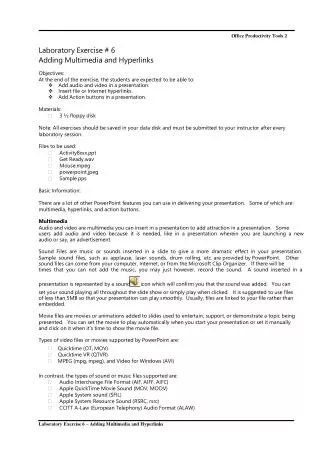
This laboratory exercise focuses on integrating multimedia elements and hyperlinks into PowerPoint presentations. By the end of the session, students will learn to add audio and video files, insert file or internet hyperlinks, and implement action buttons. The materials required include a 3½ inch floppy disk for saving progress. The exercise covers various multimedia formats supported by PowerPoint, such as WAV for audio and MPEG for video. This hands-on guide ensures students create engaging presentations that utilize multimedia effectively.


Enhancing Presentations: Adding Multimedia and Hyperlinks in PowerPoint
E N D
Presentation Transcript
OfficeProductivityTools2 LaboratoryExercise#6 AddingMultimediaandHyperlinks Objectives: Attheendoftheexercise,thestudentsareexpectedtobeableto: vAddaudioandvideoinapresentation. vInsertfileorInternethyperlinks. vAddActionbuttonsinapresentation. Materials: •3½floppydisk Note:Allexercisesshouldbesavedinyourdatadiskandmustbesubmittedtoyourinstructorafterevery laboratorysession. Filestobeused: •Activity8xxx.ppt •GetReady.wav •Mouse.mpeg •powerpoint.jpeg •Sample.pps BasicInformation: TherearealotofotherPowerPointfeaturesyoucanuseindeliveringyourpresentation.Someofwhichare: multimedia,hyperlinks,andactionbuttons. Multimedia Audioandvideoaremultimediayoucaninsertinapresentationtoaddattractioninapresentation.Some usersaddaudioandvideobecauseitisneeded,likeinapresentationwhereinyouarelaunchinganew audioorsay,anadvertisement. SoundFilesaremusicorsoundsinsertedinaslidetogiveamoredramaticeffectinyourpresentation. Samplesoundfiles,suchasapplause,lasersounds,drumrolling,etc.areprovidedbyPowerPoint.Other soundfilescancomefromyourcomputer,Internet,orfromtheMicrosoftClipOrganizer.Iftherewillbe timesthatyoucannotaddthemusic,youmayjusthowever,recordthesound.Asoundinsertedina presentationisrepresentedbyasound iconwhichwillconfirmyouthatthesoundwasadded.Youcan setyoursoundplayingallthroughouttheslideshoworsimplyplaywhenclicked.Itissuggestedtousefiles oflessthan5MBsothatyourpresentationcanplaysmoothly.Usually,filesarelinkedtoyourfileratherthan embedded. Moviefilesaremoviesoranimationsaddedtoslidesusedtoentertain,support,ordemonstrateatopicbeing presented.Youcansetthemovietoplayautomaticallywhenyoustartyourpresentationorsetitmanually andclickonitwhenit’stimetoshowthemoviefile. TypesofvideofilesormoviessupportedbyPowerPointare: • • • Quicktime(OT,MOV) QuicktimeVR(QTVR) MPEG(mpg,mpeg),andVideoforWindows(AVI) Incontrast,thetypesofsoundormusicfilessupportedare: •AudioInterchangeFileFormat(AIF,AIFF,AIFC) •AppleQuickTimeMovieSound(MOV,MOOV) •AppleSystemsound(SFIL) •AppleSystemResourceSound(RSRC,rsrc) •CCITTA-Law(EuropeanTelephony)AudioFormat(ALAW) LaboratoryExercise6–AddingMultimediaandHyperlinks
OfficeProductivityTools2 • • • • CCITTU-Law(USTelephony)AudioFormat(AU,SND,ULAW) MicrosoftWindowsWaveform(WAVE,WAV) MPEGLayer3Audio(MP3) MusicalInstrumentDigitalInterface(MIDI,MID,KAR) Hyperlinks HyperlinksinPowerPointcanalsomeanliterally,ahyperlinkinanInternet.Inthismanner,youmustbe connectedinanInternetwhenlinkinginanURL.NotonlyURLsarecanbelinkedbutalsodocuments, slides,otherpresentation,movie,sound,etc.Thiscanbelinkedandnotembeddedwhenthesefilesaretoo bigtoinsertinapresentation.Giventhat,thefilesmustalsointhesamecomputeryouareusing.Evenfiles inaCDcanbelinkedfromapresentation,ofcourse,giventhattheCDisinserted.Whenyoumouseovera hyperlink,youwillnoticethatthemousecursorbecomesahand,indicatingthatyoucanclickthatparticular textorobject. ActionButtons Actionbuttonsalsoservesasahyperlinkwhichitlinksyoutotheidentifiedslideorbringsyoutoanother location.Thesebuttonscanalsobelinktodocuments,slides,otherpresentation,movie,sound,andalso eventoaURL.Theseactionbuttonsaremostlyusedwhencreatingapresentationthatlookslikemoreofa webpagebutarecommonlyunderstoodsymbolsusedtomovetothefirstslide,next,previous,orlastslide. Activity#9AddingMultimediaandHyperlinks 1.OpenthefileActivity8xxx.ppt. 2.Onyourfirstslide,accesstheInsertmenu>MoviesandSound>SoundfromFile.TheInsertdialog boxappears. 3.Fromthisdialogbox,locatetheGetReady.wavfile.(Askyouinstructorwheretolocatethefile.) SelectthefileandclickOK. 4.PowerPointwillaskyouonhowwouldyoulikeyoursoundtostartinthepresentation,either, automaticallyorwhenclicked.Choosethesecondoption:Whenclicked. 5.Thesoundiconmustbevisibleintheslideforyoutoclickandplay,soplaceitonthelowerright corneroftheslide. 6.Ifyoucannotice,thesoundiconissmall.Well,thiscanberesizedintoyourdesiredsize.Simply holdanddragthehandlestoyourdesiredsize. Therearealotofformattingyoucandotothephysicalattributesofthisicon,suchas,toputashadow,a line,fillcolor,etc.Simplyclicktheicon,accesstheFormatmenuandchoosePicture.Modifytheline andfillcolortoyourdesiredformat.Toapplyshadow,tomakeitlooklikeabutton,selecttheiconand clicktheShadowStylebuttonfromtheDrawingtoolbarandchoosefromtheavailableshadowforthe selectedobject. 7.Right-clickthesoundicontoviewotheravailablepropertiestomodify.ChoosetheEditSound Objectoption.TheSoundOptionsdialogboxappears. TheOptiondialogboxallowsyoutomodifyplayanddisplayoptionoftheinsertedsound.Moreover, thisdialogboxalsoallowsyoutoviewthecompletedirectorywherethesaidfileislocatedandalsothe totalplayingtime.Clickingthesoundiconfromthedialogboxallowsyoutomodifythevolume.The loopuntilstoppedandhidesoundiconduringslideshowoptionsarecommonlyusedwhenchoosingto playthesoundautomatically.ClickCancelbutton. LaboratoryExercise6–AddingMultimediaandHyperlinks
OfficeProductivityTools2 8.However,youmayalsoright-clickthesoundiconandchooseplaysoundoptiontohaveapreview ofthesound. 9.SaveyourworkasActivity9xxx.ppt. 10.Createanotherslideafteryourfifthslideandapplytheblanklayout. 11.AccessInsertmenu>MoviesandSound>MoviesfromFile. 12.InserttheMouse.mpegfile(askyourinstructorwheretolocatethefile.) 13.PowerPointwillalsoaskyouifthisvideoshouldplayautomaticallyorwhenclicked:choosethe Whenclickedoption. 14.Ablacksquareappearswhichservesasthescreenofyourvideo.Resizethescreenifneededand centerthescreenontheslide. 15.Modifythelinestyleofyourscreen.AccessitsFormatPicturedialogboxbychoosingPictureoption fromtheFormatmenu. 16.AccesstheColorsandLinetab.FromtheLineportion,changethecolortoRed. 17.ClickontheDasheddrop-downlistandchoosetheLongDashDotthenchangetheweightto2pt. ClickOK. 18.Right-clickthescreenandchooseEditMovieObjectoptiontodisplaytheMovieOptionsdialogbox. JustliketheSoundOptionsdialogbox,thisallowsyoumodifyitsplayanddisplayoptionandalsogivesyou thetotalplayingtimeandthecompletedirectoryofwherethemovieislocated.Though,itgivesyoutwo moreoptions,tobeexact,torewindthemoviewhendoneplayingsoyouwon’trunagaintheslideandplay andthesecondistozoomtofullscreen.ClickCancel. 19.Topreviewthevideo,right-clickthescreenandchoosePlayMovieorsimply,double-clickthe screen.Yourmousepointerbecomesahandpointer. 20.Clickthescreentostopthevideo. 21.Addatextboxandkeyin:MouseVideo,tointroducethevideo. Now,let’saddhyperlinksthatwilllinktoaslide,toaparticulardocument,URL,etc. 22.Createanotherslide.Acquirethefollowingtextboxesasshownbelow. LaboratoryExercise6–AddingMultimediaandHyperlinks
OfficeProductivityTools2 23.Clickonthefirsttextboxthatsays:Otherpresentation.AccessInsertmenu>Hyperlink.TheInsert Hyperlinkdialogboxappears. 24.LocateyourActivity6xxx.ppt,clickthefileandclickOK.Thetextsmustnowbecoloredredand underlined. 25.ClickURL’stextbox>Insertmenu>Hyperlink. 26.Keyin:http://www.yahoo.com.phontheAddresstextbox.ClickOK.Thetextboxwillhaveno changes. 27.ClicktheOtherFile/documenttextbox>Insertmenu>Hyperlink. 28.Linkthistopowerpoint.jpg(theimageyouusedfromyouractivity3xxx.ppt). 29.Createanotherslidewithatextboxandkeyin:ThankYou!!!. 30.Gobacktoyourseventhslide,clicktheOtherslidetextbox>Insertmenu>Hyperlink. 31.ClickthePlaceinThisDocument button.ChooseLastslideoptionandclickOK. 32.Runandsaveyourpresentation. Tip: DidyouknowthattherestillanotherwayofaddinghyperlinksasidefromaccessingtheInsertmenu,also asidefromright-click>Hyperlink? ThisisthroughtheuseofSlideShowmenu>ActionSettings.TheActionsettingsdialogboxallowsyouto chooseeithermouseclickormouseoveraction.Themouseoveractionissimplytopointtoanobjectand linkstocertainfileorslide.However,thisdialogboxalsogivesyoutheoptiontorunaprogram.Tryusing ActionSettings. LaboratoryExercise6–AddingMultimediaandHyperlinks
OfficeProductivityTools2 33.Right-clickyourfirsttextboxandchooseRemoveHyperlink. Right-clickinganobjectwithahyperlinkalsogivesotheroptionsinmodifyingahyperlinksuchasremove, copy,edit,andopenthehyperlink. 34.Thetextboxstillselected,accessSlideShowmenu>ActionSettingsorright-click>ActionSettings. 35.FromtheActionSettingsdialogbox,clicktheMouseOvertab. 36.ClickonHyperlinktoradiobuttonandchooseOtherPowerPointPresentationfromthedrop-down list.Exploreotheroptionsavailable. 37.LocateyourActivity6xxx.pptandclickOK.ChoosefirstslideoptionandclickOK. 38.Now,clickontheSlideShowbuttonorpressthe<SHIFT+F5>keytoruntheparticularslideand seethedifferenceofmouseclickandmouseover. Let’saddanotherformofhyperlinkcalledasActionbuttons.Thereare12typesofactionbuttonyoucanuse whichinjusttherename,obviously,sayswhattheirfunctionsare: • • • • • • • • • • • • Custombutton Homebutton Helpbutton Informationbutton BackorPreviousbutton ForwardorNextbutton Beginningbutton Endbutton Returnbutton Documentbutton Soundbutton Moviebutton 39.Switchtoyourlastslide>SlideShowmenu>Actionbutton>ActionButton:Custom. 40.Dragintotheworkspace,justenoughasabutton.TheActionSettingsdialogboxappears. 41.FromtheMouseClicktab,clickontheHyperlinktoradiobuttonandchooseEndShowoption. ClickOK. 42.Thebuttonstillselected,modifythelineandfillcolortoyourdesiredcolor. 43.Right-clickthebuttonandchooseAddText.Keyin:End.Youmayaswellmodifythefonttypeand sizeofthetextinsidethisbutton. 44.Runyourwholepresentationandsaveyourwork. 45.Closetheapplication. PracticalExercise: Createyourownaudiovideoproductioninwhichnomouseclickormouseoverwillbeneeded.Hereare theguidelinesandconsiderationsyoumustconsider: 1. 2. 3. 4. 5. Useallpossibleslidelayoutsanddesigntemplatethatwillsupportyourpresentation. Resizeimagesaccordinglyineachslide. Formattheimagewitha3ptlineandawhiteborder. Youmayuseshapeslikecalloutsorbannersinaddingtexttomakeyourpresentationmorecreative. Insertanaudiocliponthefirstslidewhichmustplayautomaticallywhentheslideshowstartsand mustloopuntilstopped.Also,thesoundiconmustbehidden. 6.Useallpossibletransitionsandeffectsforslidesandimages. 7.Settheslidetransitionaccordinglyuntiltheendofyouraudio. LaboratoryExercise6–AddingMultimediaandHyperlinks
OfficeProductivityTools2 8.Nomouseclickormouseoverwillbeapplied. 9.NameyourpresentationasPracticalXXX.ppt. Seesampleoutputforyourreference.Thepicture/imagesandsoundclipyouwilluseshouldnothaveany maliciouscontent.(Askyourinstructoronwheretolocatethesample.ppsforyourreference.) Note:Forthenextexercise,researchaboutthefeaturesofPowerPointincludedinthispresentation.Saythat youwillbereportingthispresentation.Jotdownnotesorideasthatyoumustnotforgetwhenpresentingor whatyouwillbesayingineveryslides.Youmustbringthesenotesonyournextlaboratory.Nonotesor researchbroughtonthenextlaboratory,willhavenoexercise. *MicrosoftOfficePowerPoint2003Help LaboratoryExercise6–AddingMultimediaandHyperlinks










![[Exercise Name]](https://cdn2.slideserve.com/4369850/exercise-name-dt.jpg)