Introduction to Event-Driven Programming with HTML Elements
This section explores the essentials of event-driven programming within HTML. It explains the difference between `` and `` elements, showcasing how `` serves as a generic block element for containment. Learn to create interactive web pages using text inputs and buttons, along with their necessary attributes. Discover how to handle events like button clicks through JavaScript functions. The section provides practical examples demonstrating how to read user input and access HTML elements by their IDs using JavaScript, making web programming intuitive and dynamic.

Introduction to Event-Driven Programming with HTML Elements
E N D
Presentation Transcript
Event-Driven Programming Chapter 19
Page Section: <div> • Section or division of an HTML page • Generic block element • Example: • What's the difference between <p> and <div>? • Use <p> for paragraphs of text. Use <div> as a generic container for everything else. <div> Look at me! </div>
Text Field: <input /> • Attribute type must be set to "text" • Example: <div> Name: <input type="text" /> </div>
Button: <input /> • Attribute type must be set to "button" • Attribute value determines label of button • Example: <div> <input type="button" value="Click Me!" /> </div>
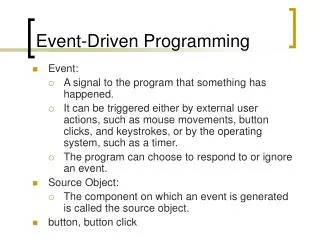
Event-Driven Programming • event-driven programming: programming paradigm in which the flow of the program is determined by events (e.g. mouse clicks, key presses) • event handler: function that is called when a particular event occurs
Button Click Event Handler • Set the onclick attribute to a function call • Function must be declared in JavaScript file • Example: • Example event handler: <div> <input type="button" value="Click Me!"onclick="myFunction();"/> </div> function myFunction() { alert("Hello, world!"); }
Reading User Input • Imagine the following web page with a text box to type your name: • Clicking the button results in a popup box: • The JavaScript function handling the click event needs access to the text field.
Identifying HTML Elements • Any HTML element can be given an ID via the id attribute • ID's on an HTML page should be unique • Example: <div> Name: <input type="text" id="name" /> </div>
Accessing HTML Elements In JavaScript • In JavaScript, you can access specific HTML elements by using a pre-defined variable called document and requesting the element by ID. • Accessing an HTML element by ID, general syntax: document.getElementById("<ID>") • Example: document.getElementById("name")
Accessing Attributes Of HTML Elements • Once you have access to a particular HTML element, you can access all its attributes using the "dot" operator. • Accessing an element's attribute, general syntax: document.getElementById("<ID>").<attribute> • Example: document.getElementById("name").value (text fields store the user input in the value attribute)
Previous Example • HTML snippet • JavaScript file <div> Name: <input type="text" id="name" /><br /> <input type="button" value="Greet!" onclick="welcome();" /> </div> function welcome() { var name = document.getElementById("name").value; alert("Hi, " + name + "!"); }
Example • HTML snippet <div> Name: <input type="text" id="name" /><br /> Age: <input type="text" id="age" /><br /> <input type="button" value="Submit" onclick="checkAge();" /> </div>
Example • JavaScript file function checkAge() { var userName = document.getElementById("name").value; var age = document.getElementById("age").value; if (age < 21) { alert(userName + ", you can't drink!"); } else { alert("Hi " + userName + ", drink away!"); } }
Changing Attribute Values • Can also change the values of attributes • HTML snippet • JavaScript file <div> Name: <input type="text" id="name" /><br /> <input type="button" value="Greet!" onclick="welcome();" /> </div> function welcome() { var name = document.getElementById("name").value; alert(name + ", I don't like your name. You are now Bob."); document.getElementById("name").value = "Bob"; alert("Hi Bob!"); }
Accessing CSS Properties • Accessing CSS properties, general syntax: document.getElementById("<ID>").style.<property> • Property names in JavaScript are identical to those in CSS, but with namesLikeThis instead of names-like-this • Examples: backgroundColor instead of background-color fontFamily instead of font-family • Example: document.getElementById("name").style.backgroundColor = "yellow";
Additional Events • The XHTML 1.0 Strict Reference has a listing of all HTML elements and their attributes. Attributes whose names begin with on (like onclick) can be set to event handlers. • http://www.december.com/html/x1