
Customize Your PowerPoint Template: Add Your Company Logo
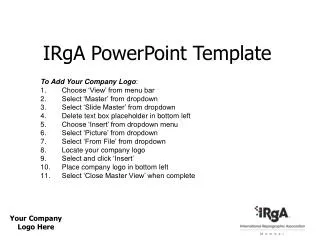
This guide will walk you through the steps to add your company logo to a PowerPoint template. By following these simple instructions, you can enhance your presentation's branding. Start by selecting 'View' from the menu bar and navigate to 'Master', then choose 'Slide Master'. Remove the default text box in the bottom left corner, and insert your logo by selecting 'Insert', then 'Picture', and finally 'From File'. Locate your logo file, insert it, and position it accordingly. Finish by closing the Master view to see your changes.

Customize Your PowerPoint Template: Add Your Company Logo
E N D
Presentation Transcript
IRgA PowerPoint Template To Add Your Company Logo: Choose ‘View’ from menu bar Select ‘Master’ from dropdown Select ‘Slide Master’ from dropdown Delete text box placeholder in bottom left Choose ‘Insert’ from dropdown menu Select ‘Picture’ from dropdown Select ‘From File’ from dropdown Locate your company logo Select and click ‘Insert’ Place company logo in bottom left Select ‘Close Master View’ when complete








![[ PowerPoint Template ]](https://cdn2.slideserve.com/4440165/powerpoint-template-dt.jpg)