Understanding VBA Functions: Creating and Using Custom Functions with Examples
This guide explores the fundamentals of VBA functions, helping you learn how to create and utilize custom functions in your Visual Basic for Applications projects. You'll discover how to define functions that accept arguments, perform calculations, and return values or strings. The example function `Rad(50)` demonstrates converting degrees to radians, returning a value of 0.8727. We also cover the macro example that uses `SayHi` to greet users. Finally, learn how to use VLOOKUP with VBA to find data in Excel, enhancing your workbook automation capabilities.

Understanding VBA Functions: Creating and Using Custom Functions with Examples
E N D
Presentation Transcript
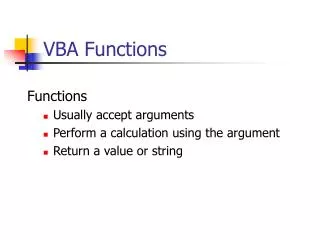
VBA Functions Functions • Usually accept arguments • Perform a calculation using the argument • Return a value or string
VBA Functions • Consider: Rad(50) • Rad( ) is a function that converts degrees to radians • The number 50 is the argument • The function multiplies the argument by p, then divides by 180. • The function returns the value 0.8727 • Used in code: MyNum = Rad(50) stores the value 0.8727 in the variable MyNum
Custom Functions • You can write your own functions in VBA • Function FuncName(arguments) • Code defines how the arguments are used. • This function accepts text as “AnyName” • It returns a text string with“Hi “ appended to the stringpassed in the argument. • Note: the name of the function must appear in the code Function SayHi(AnyName) SayHi = “Hi, “ & AnyName End Function
Calling Functions from Macros • This macro stores the name “Fred” in the variable mName. Sub AddHi( ) mName = “Fred” mOut = SayHi(mName) MsgBox mOut End Sub • It passes the name to “SayHi” • Note: the passed argumentneed not have the samename as the function • The macro then uses MsgBox to display theconverted string Function SayHi(AnyName) SayHi = “Hi, “ & AnyName End Function
Finding data with VBA • Vlookup(Value, Array, Column, Close) • Searches down the first column of Array for a match to Value. • Returns the value in the cell in Column for the same row with the match for Value. • If Close = true, it finds the best match;If Close = false, it only accepts an exact match. • VBA doesn’t have this function!
Finding Data in VBA Application.WorksheetFunction.VLookup( ) • Uses Excel function, but returns data to VBA • Cell ranges must look like: Range(“A3:A15”) Range(Array).Find(Value) • Returns a range variable defining where in Array it found that value • Use .Offset(0,Column).Formula to find