Advanced Vector Analysis Toolbox Guide
160 likes | 250 Vues
Explore ArcToolbox for vector analysis generalization, geometric calculations, centroid layers, buffering, dissolving, clipping, and intersection using ArcGIS tools efficiently. Perform advanced spatial analysis with detailed steps.


Advanced Vector Analysis Toolbox Guide
E N D
Presentation Transcript
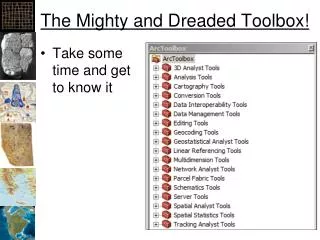
The Mighty and Dreaded Toolbox! • Take some time and get to know it
Generalization • ArcToolbox -> Data Management Tools -> Generalization -> …
Generalization (100 meters) Original Generalized to 100 meters
Generalization (1000 meters) Original Generalized to 1000 meters
Polyline Geometry • Use an “Equidistant Projection”
Polygon Geometry • Use an “Equal Area” Projection
Making Centroid Point Layers • Add fields for X and Y • Use “Calculate Geometry” to add the X and Y coordinates of the centroid • Open the dbf in Excel • Save the dbf to a tab-delimited text file • Use “Tools -> Add X Y Data” to add the text file as points
Buffering • Creates polygons around existing vector features • ArcToolbox -> Analysis -> Proximity -> Buffer
Dissolving • ArcToolbox -> Data Management Tools -> Generalization -> Dissolve • Combines features based on a common attribute value ArcGIS Help
Clip • ArcToolbox -> Analysis Tools -> Extract -> Clip • ArcToolbox -> Data Management Tools -> Raster -> Raster Processing -> Clip ArcGIS Help
Intersection • ArcToolbox -> Analysis Tools -> Overlay -> Intersect • ArcToolbox -> Spatial Analysis Tools -> Local -> Combine ArcGIS Help
Vector Processing • Perform math on attributes using “Field Calculator” • Query attributes to select desired features • Right click on layer -> Selection -> Create Layer from Selected Features • New Shapefile and Layer • Perform spatial analysis • Repeat