KIS Macbook Saving Bookmarks Procedure
This guide provides step-by-step instructions on how to back up your bookmarks on Mac using both Safari and Firefox. To save bookmarks in Firefox, open the browser, select Bookmarks > Organize Bookmarks, click the button above "Name," and choose a name and location to save the file. For Safari, go to File > Export Bookmarks and enter a name and location for the file. Remember, you will need to import these files later to recover your saved bookmarks.

KIS Macbook Saving Bookmarks Procedure
E N D
Presentation Transcript
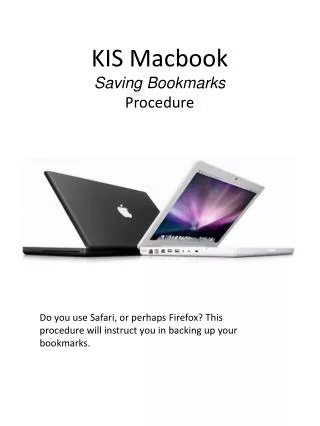
KIS Macbook Saving BookmarksProcedure Do you use Safari, or perhaps Firefox? This procedure will instruct you in backing up your bookmarks.
With Firefox running, pull down Bookmarks>Organize Bookmarks. MacbookSaving Bookmarks
Select the button just above “Name”. MacbookSaving Bookmarks
Enter Name and Location to store the File. You will need to Import this File to retrieve the saved bookmarks. MacbookSaving Bookmarks
With Safari running, pull down File>Export Bookmarks. MacbookSaving Bookmarks
Enter name and location to save file. You will need to Import this File to retrieve the saved bookmarks. MacbookSaving Bookmarks