Step-by-Step Guide to Updating Item Prices in Oracle Applications
This guide provides detailed instructions on how to update item prices in Oracle Applications. Follow the steps starting from logging in to the Price Update Program and navigating through the item and cost sections. Make sure to input the correct part number and percent symbol at the end, and perform checks if the part number appears more than once. The instructions are designed to ensure a smooth process, helping you avoid errors associated with entering revision numbers instead of part numbers.

Step-by-Step Guide to Updating Item Prices in Oracle Applications
E N D
Presentation Transcript
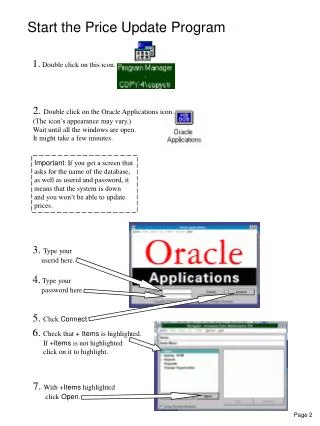
1. Double click on this icon. 2. Double click on the Oracle Applications icon. (The icon’s appearance may vary.) Wait until all the windows are open. It might take a few minutes. Important: If you get a screen that asks for the name of the database, as well as userid and password, it means that the system is down and you won’t be able to update prices. Start the Price Update Program 3. Type your userid here. 4. Type your password here. 5. Click Connect. 6. Check that + Items is highlighted. If +Items is not highlighted click on it to highlight. 7. With +Items highlighted click Open. Page 2
8. Click +Costs to highlight it. 9. With +Costs highlighted, click Open. 10. With Item Costs highlighted, click Open. 11. With BEL Belmont highlighted, click OK. Page 3
To update the price of an item: 1. Type the part number here. Do not type the rev number. In other words, type A12345 and not A12345-1. 2. Type a percent sign (%) at the end of the part number. 3. Click Find. Update the Price of an Item 4. If the part number is listed twice (Frozen and Pending) then a. Click once on the line labeled “Pending” to highlight it. b. Click on Costs. c. Go to step 9 on page 6. Page 4
Remember to put a % sign at the end of the part number, rather than a rev number. 5. If the part number is listed only once, then a. put the cursor in the box below the number. b. Re-type the part number. p 6. Hit the tab button to move the cursor to the next box. 7. Type the letter p. 8. Click Costs. Page 5