QuickTime 6 Windows Media Player
This guide teaches you how to export digital videos for the web, covering key file formats like AVI, WMV, and MOV. You'll learn how to shoot digital video using a DV camera, import it into your computer (both PC and Mac), and efficiently export it for web use. Steps are provided for using iMovie or Windows Movie Maker to edit your footage and HTML tags to embed the video on your webpage. Ensure your video files are saved correctly for seamless integration into your online content.

QuickTime 6 Windows Media Player
E N D
Presentation Transcript
QuickTime 6Windows Media Player Exporting Video to the Web
Objectives • Learn the differences between .avi, .wmv and .mov files • Shoot Digital Video on a DV Camera • Import Digital Video into a Computer (PC & Mac) • Export Digital Video from the Computer to the World Wide Web • Enter HTML tags to post video on a web page
Video that can be Created on a Windows PC include .AVI & .WMV files
Video that can be Created on a Mac include .AVI & .MOV files
Shooting DV • With a standard DV camera, you can shoot digital video that can be imported into a computer for editing
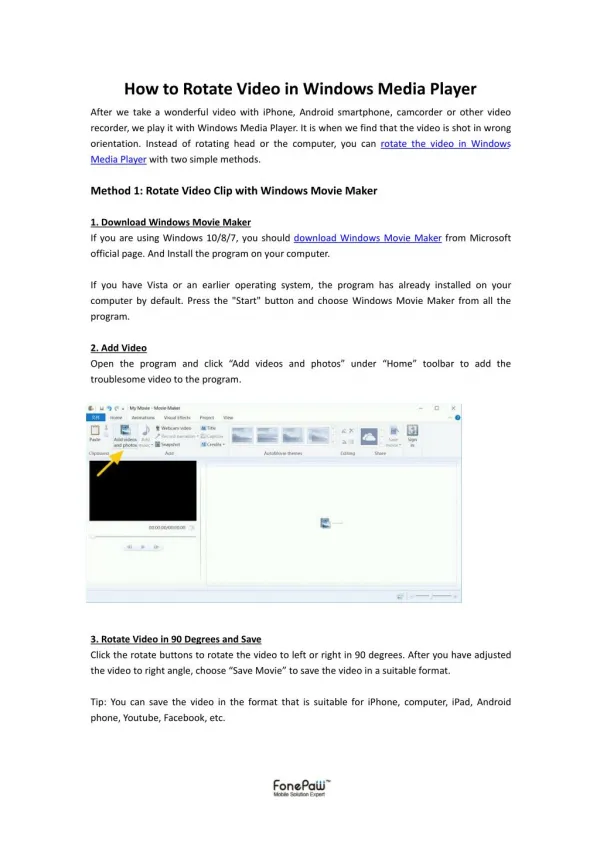
Importing Video into your Computer • Import the video to your computer by connecting the IEEE 1394 (or FireWire) cable from the camera to the computer • Open up iMovie (Windows MovieMaker) to prepare to edit the video
Exporting Video for the Web • On a PC, select “File,” select “Send Movie To,” select “Web Server.” • On a Mac, select “Export”, Under Export select “To QuickTime.” Under Format Select “Web Movie.” If you want a higher quality movie, select “CD-ROM Movie” • Save your movie to your folder in which your web page is located
Creating a Web Page for your Video • Open up Notepad (BBEdit) on your computer and enter your HTML Tags
HTML Tags for Inserting Video • You can enter a video into your page and have it open up for viewing • Remember: Your video should be saved in the same folder as your HTML file
Video Inserted as a Hyperlink • Enter the following HTML Code to have your video open up in a new window and play automatically