Enhancing Classroom Engagement with TurningPoint Clickers
70 likes | 194 Vues
Discover how TurningPoint clickers can transform your classroom into an interactive learning space. This audience response system fosters two-way communication between instructors and students, allowing for instant feedback and engagement. Learn to set up and use clickers effectively in your lectures, enhancing student participation while using Microsoft PowerPoint for interactive presentations. Perfect for educators looking to create a more dynamic and enjoyable learning environment. Join the conversation and explore the potential of clickers in effective teaching!


Enhancing Classroom Engagement with TurningPoint Clickers
E N D
Presentation Transcript
Clickers in THE Classroom Gadgets, Guides and Giggles: Fostering Fun in Your Learning Space, July 14, 2010, Salisbury University
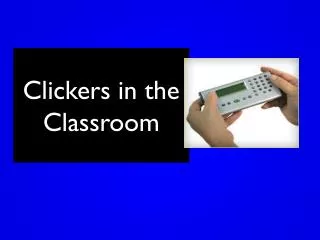
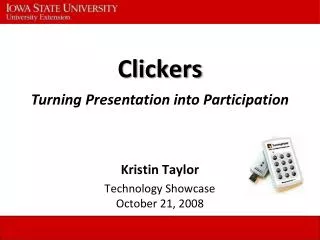
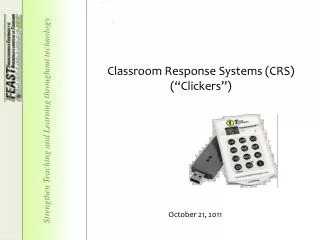
WHAT IS TURNINGPOINT? TurningPoint is an audience response system that enables two-way communication between a speaker and a group. It offers the ability to collect, evaluate and record students’ responses instantly, transforming a lecture into a more effective learning environment for everyone in the room.Through Microsoft PowerPoint, you can create interactive presentations for use in clicker-ready classrooms on campus.
Channel Setting Instructions forResponseCard RF 1. Press and release the "GO" button. 2. While the light is flashing red and green, enter the 2 digit channel code (i.e. channel 1 = 01, channel 21 = 21). Channel is 43 3. After the second digit is entered, Press and release the "GO“ button. 4. Press and release the "1/A" button. The light should flash yellow to confirm.
Have you used clickers before? • Yes • No • Abstain
Was your drive to SU pleasant? • Yes, excellent • Well, it was okay, but… • Umm, I’d rather not say • Zzzzz…….
Clickers inTHEClassroom Gadgets, Guides and Giggles: Fostering Fun in Your Learning Space, July 14, 2010, Salisbury University