Download
1 / 18
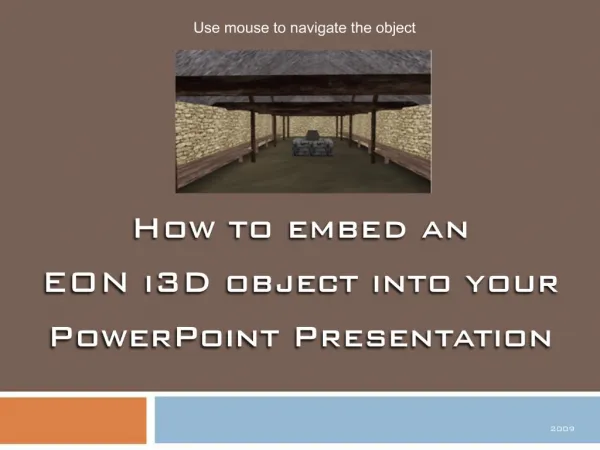
How to embed an EON i3D object into your PowerPoint Presentation
180 likes | 343 Vues
Introduction. Interactive 3D Learning Objects can provide an extremely valuable upgrade to both new and pre-existing PowerPoint presentations.After completing this step-by-step guide, you will be able to successfully enhance the look and feel of your presentations by the addition of the i3D Learni

Télécharger la présentation 
How to embed an EON i3D object into your PowerPoint Presentation
An Image/Link below is provided (as is) to download presentation
Download Policy: Content on the Website is provided to you AS IS for your information and personal use and may not be sold / licensed / shared on other websites without getting consent from its author.
Content is provided to you AS IS for your information and personal use only.
Download presentation by click this link.
While downloading, if for some reason you are not able to download a presentation, the publisher may have deleted the file from their server.
During download, if you can't get a presentation, the file might be deleted by the publisher.
E N D
Presentation Transcript
2. Introduction
3. Step 1: Identification
4. Step 2: Toolbar Settings
5. Step 2: (Continued)
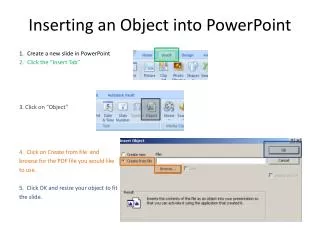
6. Step 3: Embedding the Object
7. Step 3: (Continued)
8. Step 4: Setting Properties
9. Step 4: (Continued)
10. Helpful Tips
12. Step 2: Toolbar Settings
13. Step 3: Embedding an Object
14. Step 3: (Continued)
15. Step 4: Setting Properties
16. Step 4: (Continued)
17. Helpful Tips










More Related