
SlideServe
Menu
Préférences
© SlideServe · v2026

WEB ACCESSIBILITY & CQ
abram avatar
19 diapositives · 401 Views · Aug 14, 2014

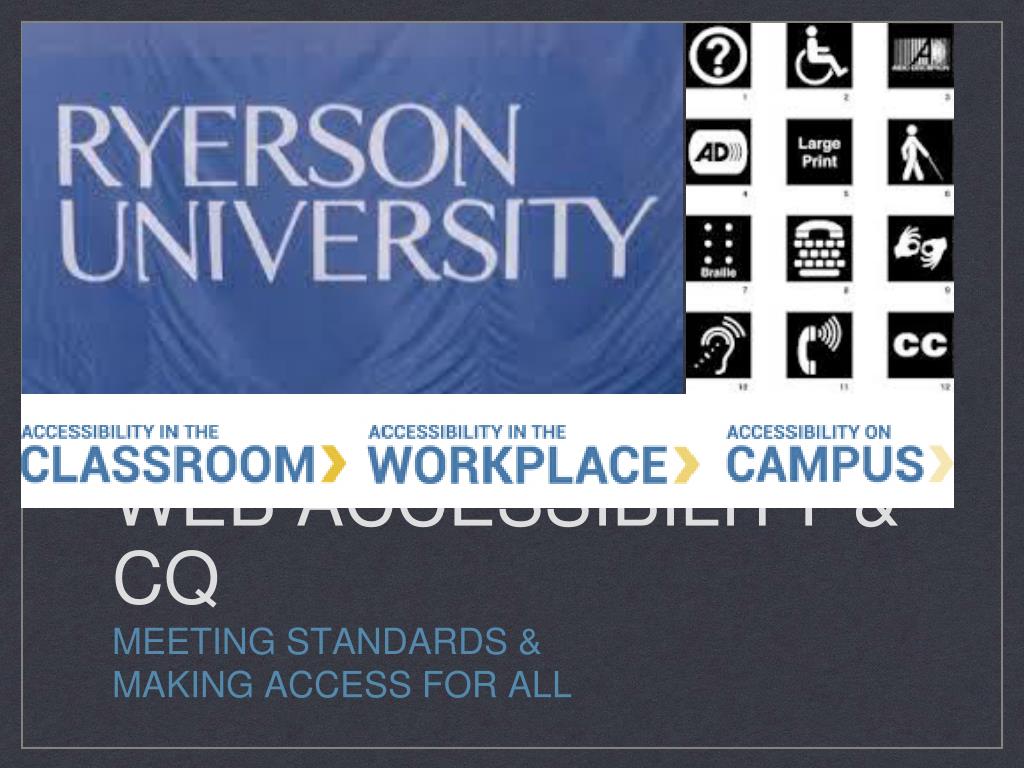
WEB ACCESSIBILITY & CQ. MEETING STANDARDS & MAKING ACCESS FOR ALL. Stuff to cover. Legislation / Regulation / Web Guidelines Assistive Technology Demo Alternative Text for Images Creating Page Structure Accessibility Reports. What is this Accessibility thing?.
WEB ACCESSIBILITY & CQ - slide 1
01 / 19WEB ACCESSIBILITY & CQ
1 / 17

Télécharger la présentation

WEB ACCESSIBILITY & CQ
Une image / un lien ci-dessous est fourni (tel quel) pour télécharger la présentation

Politique de téléchargement : le contenu du site vous est fourni TEL QUEL pour votre information et votre usage personnel ; il ne peut être vendu, concédé sous licence ni partagé sur d’autres sites sans l’accord de son auteur.Le contenu vous est fourni TEL QUEL, pour votre information et votre usage personnel uniquement. Téléchargez la présentation en cliquant sur ce lien. Lors du téléchargement, si vous ne parvenez pas à télécharger une présentation, l’éditeur a peut-être supprimé le fichier de son serveur.Pendant le téléchargement, si vous ne parvenez pas à obtenir une présentation, le fichier a peut-être été supprimé par l’éditeur.

F I N

Plus de contenu associé

Transcription de la présentation
  1. WEB ACCESSIBILITY & CQ • MEETING STANDARDS & • MAKING ACCESS FOR ALL

  2. Stuff to cover • Legislation / Regulation / Web Guidelines • Assistive Technology Demo • Alternative Text for Images • Creating Page Structure • Accessibility Reports

  3. What is this Accessibility thing? • Accessibility is how users with disabilities access information and… • how web content designers and developers enable web pages to function with assistive devices used by individuals with disabilities.

  4. Assistive Technology Demo • Screen Readers (text to speech • Braille output • Screen Magnification • Speech to Text (dictation) • Adapted keyboards / input devices

  5. Laws and Standards • Accessibility for Ontarians With Disabilities Act • Integrated Accessibility Standards Regulation (IASR) • Web Content Accessibility Guidelines 2.0 Levels A & AA

  6. Implementation Timelines • All New websites / web-apps in planning stage January 1, 2014 and onward are covered • Substantial refreshes of content / infrastructure / layout & design (50% + 1) after January 1, 2014 • All web assets to be retroactively applied by 2021

  7. Accessibility isn’t a feature. It is the way an organization or brand thinks about people. That a product works for all people; can navigate it, understand it and complete the tasks they wanted to accomplish

  8. ALT text describes an image • Alternative text or “ALT text” conveys the meaning of an image, diagram or chart in text form • When writing ALT text; ask yourself • What is it’s purpose? • What is it telling us? • Why is it there? • Is the context captured based on the surrounding information?

  9. Alt Text example in context • The typical late 19’th century Ontario farmstead relied greatly on animal power for planting crops and transportation ALT text can describe an image but.. there’s many different ways to interpret informational content

  10. Context changes • The township of Ryerson was incorporated in 1880 and named after Dr. Egerton Ryerson, the Chief Superintendent of Education for Ontario from 1844 to 1876 It all depends on the context of the surrounding information and what you wish to convey

  11. Add Descriptions for… • Instructive images • Diagrams and charts with informational data • Action buttons e.g. Search or Submit buttons • Any information that conveys meaning that would be missing if not described

  12. Mark as Null if • Uninformative or decorative images (added only for aesthetic value, not content) • Layout elements and Spacers (filler images) • Logos (When link action defaults back to landing page) • Images previously described (duplication of description)

  13. EXAMPLES OF DECORATIVE IMAGES • ALT = “”

  14. ALT text best practices • Use Plain Language that is short and succinct • Avoid phrases such as "image of" or "graphic of…" • Put the most important words first in the description • Background Images should not be used to convey information as ALT text cannot be added • Keep the length as short as possible but no shorter

  15. Structure is Key • Create pages with styles or Headings. They add the structure necessary to make a page more usable to people with disabilities. e.g. Heading 1, Heading 2, List Paragraph etc. • Always associate labels with form controls that are descriptive • Links are self describing i.e. “PDF file of final report” rather than “link here”

  16. Using Reports for Access • Reports provide help in identifying Accessibility issues • Reports describe what the issue is and where to find it • Optionally can see location of issue on webpage • Automated Reports are part of a broader accessibility solution - Manual checks and Assistive technology testing also needed

  17. Sample Report Output

  18. Next Steps - Resources • Government of Ontario Resources • http://www.accesson.ca • Ryerson Resources • http://www.ryerson.ca/accessibility/tools • http://www.ryerson.ca/dmp/accessibility • http://www.ryerson.ca/cmssupport/accessibility/alttext.html • Adobe Resources • http://www.adobe.com/accessibility.html