Mastering Image Insertion in Blogger: A Step-by-Step Guide
60 likes | 177 Vues
Welcome to this tutorial in the Outoppies Blogging Series, where we guide you on how to effectively insert images into your blog posts using Blogger. Learn to navigate the posting tab, use the Insert Picture feature, and adjust image alignment and size. This lesson covers selecting images from your hard drive, using thumbnails, and managing multiple images. We also share tips on resizing images and editing posts for a cleaner look. Follow along and enhance your blogging experience. Thank you for joining us!


Mastering Image Insertion in Blogger: A Step-by-Step Guide
E N D
Presentation Transcript
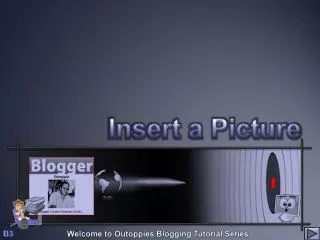
Insert a Picture B3 Welcome to Outoppies Blogging Tutorial Series
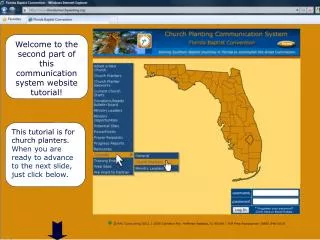
Select New Post, Posting Tab, Create Tab, Select Insert Picture Button Remember to select the Alignment and Image size before you Browse for a Picture Remember After you have selected a picture it’s url will display in the Browse window. To select another picture click on the ‘Add another Image’ to display a second Browse window! (max x5) When satisfied click Upload Image Blogging Series
Browse your hard-drive for a picture, or select Thumbnails View for Thumbnail-images of your pictures Plz wait for Blogger to ….. Plz wait for Blogger to ….. Plznot yet… Blogging Series
Sometimes x2 Images of the same appears, delete one when in posting tab mode, sometimes u need to Publish and Edit Post, but before Viewing to remove xtra image! (see below) Resize image by highlighting and dragging the corners! Now you may select ‘DONE’! Resize image by highlighting and dragging the corners! Blogging Series
When satisfied select Publish Post This is your postings The sidebar (in this case on the left), contains all your Widgets, Labels, Blog Archive, Recent Posts, Visitors info etc … Most of these Widgets and Gadgets you need to get yourself as Blogger only provide some of these add-ons … Blogging Series
Click Esc to Exit Thank you for watching this short Lesson This is just one of several free Lessons All these Ideas are readily available on the Internet Come back soon! Creator: Frans Kruger 2009 The End http://cooloutoppie.blogspot.com