USE CLIENT ACCESS SECURITY IN CLIENT/MATTER INQUIRY
Are you looking to restrict client access for specific timekeepers while allowing them to perform their own searches in Client/Matter Inquiry? With Juris Suite, you can tailor user access effectively. Simply navigate to Inquiry > Client/Matter Inquiry, select the Field Permissions button, choose the user, and adjust the Client Lookup Permissions. Remove the checkmark for "Allow user to see all clients" to specify access limits. You can restrict users to items where they are responsible, by practice class, office, or specific clients. Easily copy settings to other users as needed.

USE CLIENT ACCESS SECURITY IN CLIENT/MATTER INQUIRY
E N D
Presentation Transcript
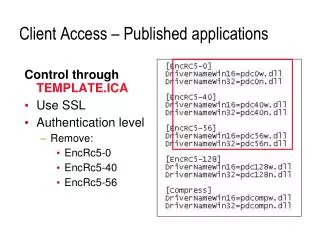
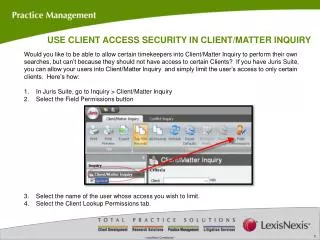
USE CLIENT ACCESS SECURITY IN CLIENT/MATTER INQUIRY • Would you like to be able to allow certain timekeepers into Client/Matter Inquiry to perform their own searches, but can’t because they should not have access to certain Clients? If you have Juris Suite, you can allow your users into Client/Matter Inquiry and simply limit the user’s access to only certain clients. Here’s how: • In Juris Suite, go to Inquiry > Client/Matter Inquiry • Select the Field Permissions button • Select the name of the user whose access you wish to limit. • Select the Client Lookup Permissions tab.
USE CLIENT ACCESS SECURITY IN CLIENT/MATTER INQUIRY 5. Remove the checkmark beside the “Allow user to see all clients” option to enable the Client permission selection options below.
USE CLIENT ACCESS SECURITY IN CLIENT/MATTER INQUIRY • You may elect to limit this user to • Only items where they are assigned as the Billing, Originating or Responsible Attorney on the Client. • Only items for a certain Practice Class or Classes • Only Clients assigned to a specific Office • Specific Clients can be added • When more than one of these items is chose, the system allows the user to see the Client if they meet any of the criteria selected (In our example, Anne B Collins would be allowed to see any Client where she is the Responsible Attorney OR Clients where the Practice Class is General OR Clients in the New York office.) • 7. The copy buttons can be used to copy this user’s settings to other users.