Control System Studio Setup - Hierarchical Preferences, Workspaces, Shared Folders
This guide provides step-by-step instructions for configuring hierarchical preferences and shared folders in Control System Studio (CSS). Learn how to set up your CSS experience by managing workspace preferences, customizing settings via configuration files, and utilizing shared folders without duplicating data. Discover the importance of individual workspaces, command-line options for preference settings, and how to create linked folders. Ensure efficient workflow management and access to shared resources for all users utilizing CSS.

Control System Studio Setup - Hierarchical Preferences, Workspaces, Shared Folders
E N D
Presentation Transcript
Control System Studio Setup-Hierarchical Preferences, Workspaces, Shared Folders Xihui Chen, Kay Kasemir ORNL/SNS chenx1@ornl.gov April 2013 at IHEP
Desired CSS Experience Should be: Not: • Download CSS • Run Download CSS Set EPICS address list Configure email server Add alarm GUI Disable BOY editing Add archive data sources … Run
How to get there? • Customized product: • SNS CSS, NSLS-II CSS, … • Local update site Best, but also more work • Generic product • Basic EPICS CSS? • Hierarchical Preferences for your site May be good enough to get started
Hierarchical Preferences Override Order • Preferences.ini inside individual plugin • org.csstudio.platform.libs.epics/preferences.ini: addr_list= • Product’s plugin_customization.ini: org.csstudio.platform.libs.epics/addr_list=127.0.01 • Command-line -pluginCustomization /path/to/settings.ini • Workspace Preference Page • Only work per workspace
Exercise: Preferences from Command line • In your home directory, create a file “my_css_settings.ini” • Add a line org.csstudio.platform.libs.epics/addr_list=127.0.01 1.2.3.4 • Use the IP address of your computer instead of 1.2.3.4 • Run CSS with option -pluginCustomization /path/to/your/my_css-settings.ini • See menu Run/Run Configurations… to do this from within the IDE • When you now view the CSS/Preferences/CSS Core/EPICS settings, press “Default”, does it use the value from your settings.ini? Check the spelling of “-pluginCustomization”and the exact path of your …ini file. There won’t be an error, it simply won’t “work”.
Workspace • User’s personal data • Projects, folders, files • Preferences • .metadata/ • Remember the perspective, opened files and so on when it was closed • Each CSS instance needs a single workspace • Workspace is locked if it is being used • The lock file: .metadata/.lock • If CSS exit abnormally and keep the workspace locked, delete the lock file to unlock it.
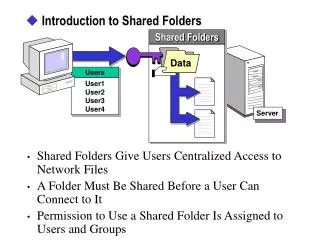
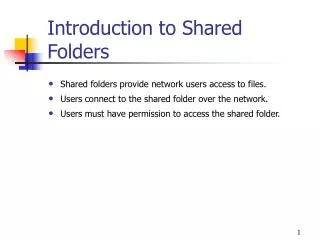
Shared Folders • If some folders need to be shared by all users • Don’t copy it to workspace • Instead, create link folder in workspace • How to create link folder? • From command line • -share_link /local/file/system/path=/workspace/path • In CSS, New Folder dialog, select • Link to alternate locations (Linked Folder)