
Easy Guide: Creating Stunning Videos with Animoto Tutorial
E N D
Presentation Transcript
Animoto Tutorial by Zach Volkman
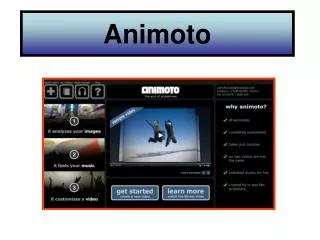
Step One • In order to produce a project with Animoto, you will first have to create an account • To do this, simply click on the sign up button • Enter your information • Start creating
Choosing video type • Animoto offers various lengths of video • For this tutorial we will use the free short video which is 30 seconds
Choosing photos and videos for your project • Next choose were you would like to upload media from • You can upload from • Your computer (your images) • There collection of images • Or from a website (ex. Flickr, Facebook,etc) • For this tutorial we will use their image collection
Creating • Now you can choose images or video clips for your project • Select category for clips • Select image • Click done • To add more photos or video clips simply click add more • When finished click done to move on
Adding Music • Now you can add music to project • You can use their collection of music, or upload music from computer, we will use their collection • Select genre • Select song to add
Finishing Project • You can customize video length, frame spacing and cover screen, we will leave them at default settings • Click continue • Type title and description, click create video • Wait for Animoto to create your video • Then it will be emailed to you so you can save/present it