Navigating Wimba Classroom's Student View Features
10 likes | 130 Vues
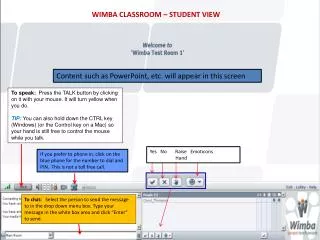
This guide provides a detailed overview of the Wimba Classroom Student View interface. Students can interact with various content types, such as PowerPoint presentations, and utilize the TALK button for audio participation. By pressing TALK, the button turns yellow, signifying that the student can speak. For hands-free operation, holding the CTRL key (Windows) or Control key (Mac) is recommended. Students can also communicate via the chat feature, selecting recipients and sending messages directly within the platform.


Navigating Wimba Classroom's Student View Features
E N D
Presentation Transcript
WIMBA CLASSROOM – STUDENT VIEW Content such as PowerPoint, etc. will appear in this screen To speak: Press the TALK button by clicking on it with your mouse. It will turn yellow when you do. TIP:You can also hold down the CTRL key (Windows) (or the Control key on a Mac) so your hand is still free to control the mouse while you talk. Yes No Raise Emoticons Hand If you prefer to phone in, click on the blue phone for the number to dial and PIN. This is not a toll free call. To chat: Select the person to send the message to in the drop down menu box. Type your message in the white box area and click “Enter” to send.