Download
1 / 13
130 likes | 239 Vues
Discover effective visual strategies and assistive technology tools to improve communication, attention, and behavior in individuals with autism. This comprehensive guide highlights Universal Design for Learning (UDL) principles and the impact of the Assistive Technology Act of 1998. Learn about valuable resources such as low-tech communication kits, Boardmaker, social stories, and digital tools that support speech-language pathologists (SLPs) in fostering comprehension and engaging learning environments. Elevate your practice with proven visual tools tailored for diverse learners.

E N D
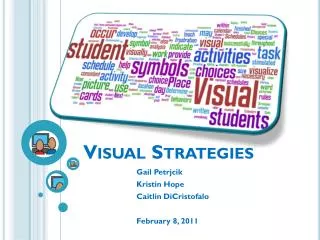
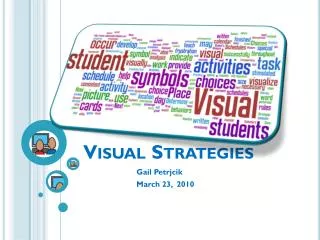
Visual Strategies Gail Petrjcik March 23, 2010
AT Wikispace http://atc-hernando.wikispaces.com AT Procedures • AT Lab Favoriteshttp://delicious.com/atlabhernando
Visual Strategies Universal Design for Learning – UDLIn the Law… Assistive Technology Act of 1998 - Public Law 105-394 http://www.udlcenter.org/aboutudl/udlguidelines
Visual Strategies Communication Behavior Programming • Improve • Attention • Behavior • Communication • Comprehension Strategies Visual Tools Autism *Linda Hodgdon, M.Ed., CCC-SLP is a Speech-Language Pathologist and a consultant for autism spectrum disorders. Her best selling book ‘Visual Strategies for Improving Communication’ is one of the most recommended books in the field of autism. Technology Self Manage-ment Resources
SLPs have… • Low Tech communication kits • Super Talker • Book Worm literacy tool • Boardmaker • iTalk 2 • Step-by-Step • Digital camera
Boardmaker • Communication device templates • Flashcards • Visual Schedules • Games • Activities • Social Stories • Communication Books • Vocabulary
Boards in Word Using Tables • Click the Insert tab • Click the Table button then drag the cursor to select the number of squares needed for the table • Adjust the size of the table by dragging out corners or sides
Add Clip Art or Pictures • Click the Clipart/Picture Button • Search for ClipArt/Picture • Click on a square in the table then on ClipArt/Picture and it inserts on the square • Adjust Picture size using ‘handles’ on corners • To move pictures around on squares • Double Click on a picture and select Text Wrapping -Tight
Add Photos without tables • Open a Blank Document • Click Insert • Click on the Photo than Click Insert • Click and drag bottom edge of picture to resize • Double Click on picture and select Text Wrapping -Tight to move picture around page easily
Formatting Pictures- Frames • Double click on Picture to access Picture Format Tools • Hover cursor to preview choices • Click to Select Frame or…
Wired Wednesdays • Read & Write Gold • Boardmaker • Visual Strategies • Wonders of Word • PowerPoint Books
AT Wikispace http://atc-hernando.wikispaces.com AT Procedures • AT Lab Favoriteshttp://delicious.com/atlabhernando